


Summary
- Regex patterns help search text strings efficiently (e.g., emails, digits, specific sequences) using symbols.
- Excel provides predefined regex functions (REGEXTEST, REGEXEXTRACT, REGEXREPLACE) to search, extract, and replace data.
- Combine regex functions with other Excel functions for more advanced data manipulation and validation.
Filtering and searching in Excel can feel like a guessing game. Regex functions change that. Now, I can pinpoint exactly what I need—complex patterns, partial matches, or structured data extraction—without breaking a sweat.
What Is Regex?
Regex is a type of pattern used to search a text string or sequence of characters for a match. Have you ever wondered how websites can tell you that the email pattern you have entered on a login page is invalid? That’s one example of a regex pattern using an email signature at work.
Regular expressions are not unique to Excel—they’re available in multiple text editors, programming languages, command-line tools, IDEs, and even Excel’s competitor, Google Sheets.
Regex might sound complicated, and it is if you want to use it to its full potential, but you don’t need to be a programmer to use it effectively. In some cases, you can get away with just knowing how to use a few symbols and basic patterns. I’ll keep this guide as simple as possible so you can start using them.
Here are the symbols we’ll be using in this guide:
|
Symbol |
Description |
|---|---|
|
– |
Specifies a range of characters within brackets. |
|
^ |
Match the start of a string. |
|
$ |
Match the end of a string. |
|
. |
Match any character other than the new line character. |
|
* |
Match 0 or more of the preceding character. |
|
+ |
Match 1 or more of the preceding characters. |
|
() |
Group the matched characters into one. |
|
[] |
Match any of the characters inside the brackets. |
|
[^] |
Match any character that is not inside the brackets. |
|
{n} |
Match exactly n instances of the preceding character. |
|
{n,} |
Match n or more occurrences of the preceding character |
Simple regex patterns you can build with these symbols include:
|
Regex Pattern |
Description |
|---|---|
|
[0-9] |
Match a single digit from 0 to 9 |
|
[a-zA-z0-9] |
This is a combination range that matches a single character from lowercase a to z, uppercase A to Z, and from 0 to 9. |
|
^pro |
Match any string that begins with pro. |
|
[^$] |
Match any character that is not $. |
|
(con) |
Group the pattern con. |
|
a{3,} |
Match 3 or more occurrences of the latter a (e.g., a, aa, or aaa). |
Regex functions are predefined Excel formulas that can be used to define a pattern for searching and manipulating text strings. There are three regex functions as of now, and we’re going to look at how to use them separately and with other functions.
Search for Patterns
The first function we are going to look at is REGEXTEST. It takes a text string you want to use for searching and a regex pattern, and uses the latter to find a match in the former. The function will return either True or False.
The syntax for the REGEXTEST function is as follows:
REGEXTEST(string_to_search, regex_pattern_to_use, [case_senstivity])
The first two parameters, string_to_search and regex_pattern_to_use, are self-explanatory. The [case_sensitivity] parameter is optional—anything placed in square brackets when talking about Excel syntax is optional—and denotes whether you want the search to be case-sensitive (0) or case-insensitive (1). The default is case-sensitive.
In our example, we will use REGEXTEST to see if a user has entered a valid email address using the following formula:
REGEXTEST(B3, "^[a-zA-Z0-9._%+-]+@[a-zA-Z0-9.-]+\.[a-zA-Z]{2,}$")
Here, we are searching in cell B3 to see if it contains an email address using the regex pattern below:
^[a-zA-Z0-9._%+-]+@[a-zA-Z0-9.-]+.[a-zA-Z]{2,}$
If I place the formula in cell C3 and enter [email protected] in cell B3, it will return True because that matches the signature of an email.
Next, lets look at the REXEXEXTRACT function. It returns a substring (a portion of the string) that matches the regex pattern provided.
The syntax for the REXEXEXTRACT function is as follows:
REGEXEXTRACT(string_to_search, regex_pattern_to_use, [return_mode], [case_senstivity])
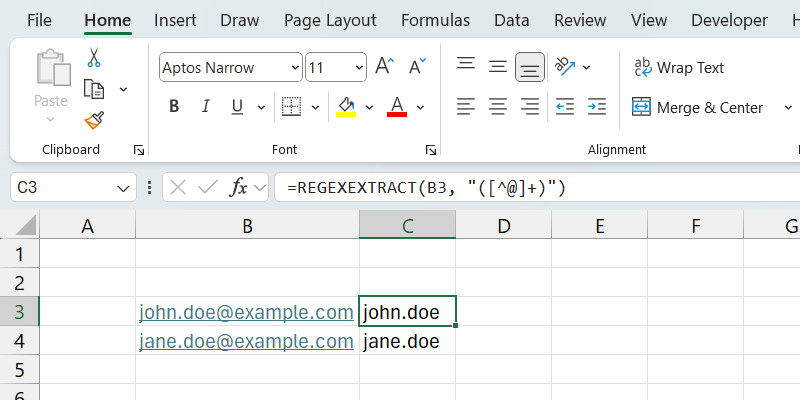
Continuing with the email example, let’s add a formula in cell B4 to extract the username of the portion of the email.
Here is what the formula will look like:
=REGEXEXTRACT(B3, "([^@]+)")
In this formula, we extract everything before the @ symbol in the email address entered in B3.
Find and Replace Using Regex
The final regex function we will look at is REGEXREPLACE. This function is similar to Excel’s REPLACE function, but also supports RegEx. It takes the text string you want to modify and checks to see if there is a substring that matches the defined regex pattern. If it finds it, it replaces it with the provided replacement string.
The syntax of the REGEXREPLACE function is as follows:
REGEXREPLACE(string_to_modify, regex_pattern_to_use, replacement_string, [number_of_occurrences], [case_senstivity])
Here are the important parameters to pay attention to in this function:
- string_to_modify: The text string you want to modify.
- replacement_string: The string to replace the substring with.
- number_of_occurrences: The exact instance you want to replace.
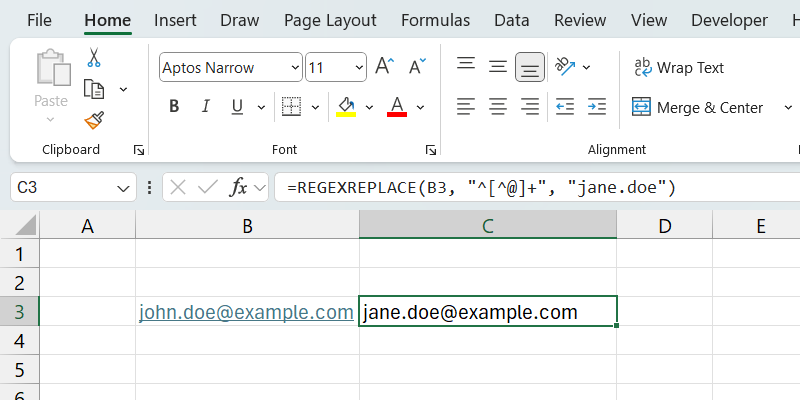
Here is an example of using the function to replace the username portion of the email with another text string:
=REGEXREPLACE(B3, "^[^@]+", "jane.doe")
The value of B3 is [email protected], and after we enter the formula above in cell C3, it will return [email protected].
Combine Regex With Other Functions
You can also combine the regex functions with other functions in Excel. For instance, you can combine the REGEXTEST function with an Excel IF statement and display the appropriate message based on the result.
Here is an example formula:
=IF(REGEXTEST(B3, "^[a-zA-Z0-9._%+-]+@[a-zA-Z0-9.-]+\.[a-zA-Z]{2,}$"), "This is a valid email address!", "The email address is invalid!")
This formula uses the IF statement to check if the email address entered in cell B6 is valid and then display This is a valid email address! if it is TRUE or The email address is invalid! if it is FALSE. Alternatively, you could pair this with the FIND function to quickly find data in Excel.

This is not meant to be an extensive guide on regular expressions—that would require several articles on its own. However, it’s a good way to start using RegEx in Excel. The use cases and possibilities are only limited by your imagination.