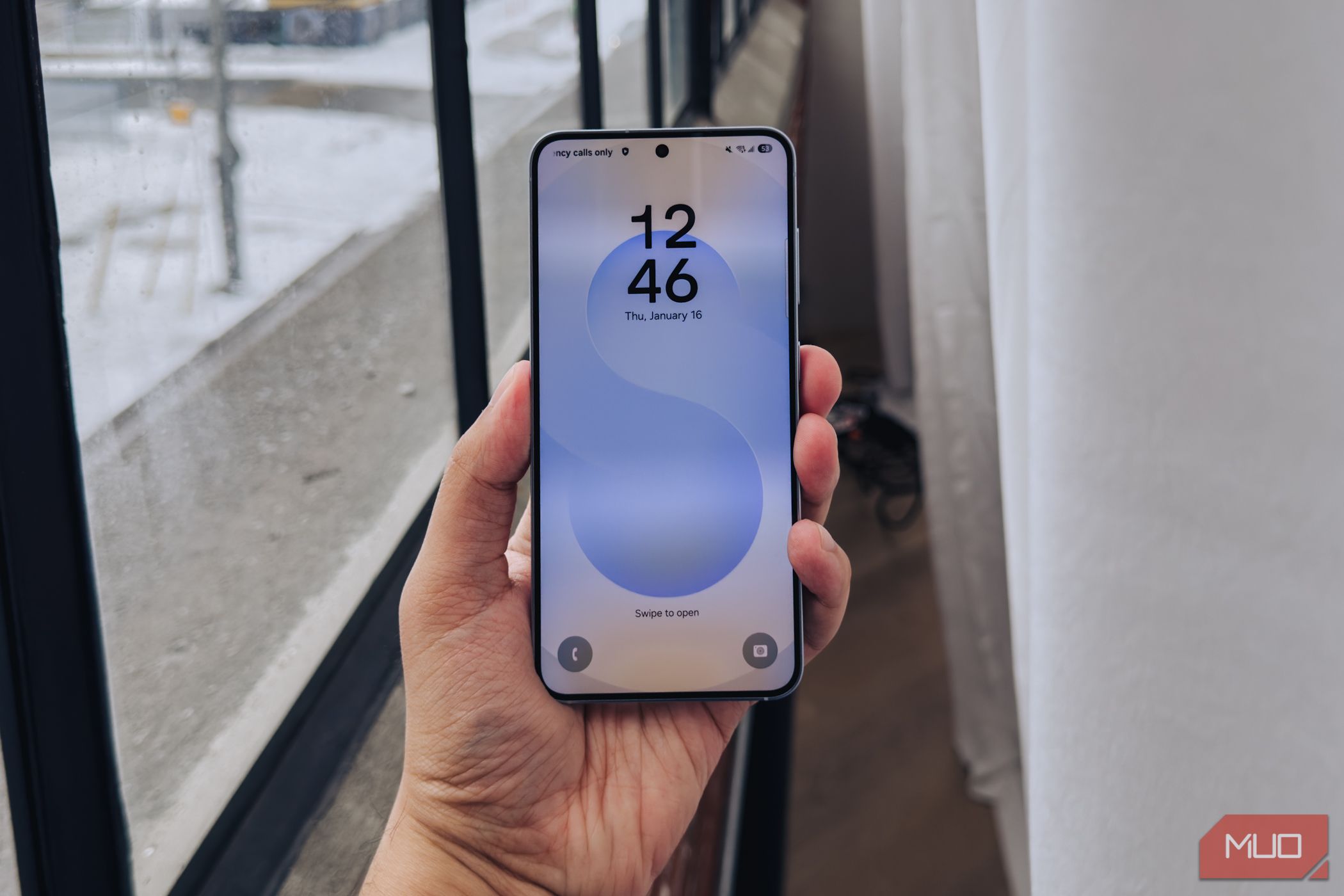

Factory resetting your Samsung Galaxy phone always brings the fear of losing important data. But you don’t have to back up to your computer or pay for an expensive cloud service when Samsung’s temporary cloud backup offers a perfect solution.
What Is Temporary Cloud Backup on Samsung Galaxy?
Before factory resetting your Samsung Galaxy phone, you’ll want to ensure that all your data, including images, videos, apps, settings, and more, is backed up. While Samsung Cloud already backs up essentials like contacts, call logs, SMS messages, and apps, it does not store your photos, videos, and device documents.
To create a complete backup, you need to use third-party cloud storage services like Google Drive or Microsoft OneDrive. However, since both offer limited free storage—15 GB for Google Drive and 5 GB for OneDrive—you may need to purchase additional space. Alternatively, you can use a PC or external storage to back up your phone.
With Samsung’s temporary cloud backup, you don’t need to worry about these things. This feature lets you securely store all the data on your Samsung Galaxy phone for free for up to 30 days. All you need is a Samsung account and a Galaxy phone running One UI 6 or later.
With this feature, you can safely back up your phone, perform a factory reset, and then restore the data effortlessly. This is especially useful when switching to a new device or resetting your phone for troubleshooting purposes.
Use Temporary Cloud Backup on Samsung Galaxy
Using the temporary cloud to back up everything on your Samsung phone is fairly straightforward. However, before you begin, there are a few things to keep in mind:
- While there’s no cap on the overall backup size, individual files cannot exceed 100 GB.
- Any files saved on your SD card won’t be included in the backup.
- The backup won’t include read-only contacts, chat history from instant messaging apps like WhatsApp, or locked notes in Samsung Notes.
- You can only restore your data from the cloud for up to 30 days after backing it up.
Here’s how to use the temporary cloud backup feature to back up everything on your Samsung Galaxy phone:
- Open the Settings app and scroll down to tap on General management.
- Go to Reset > Temporary cloud backup.
- Tap the Back up data button.
- Use the checkboxes to select all the items you want to backup. Optionally, you can tap Find out what data can’t be backed up for more information.
- Tap Back up to initiate the process.
The backup process may take some time, depending on your internet speed and the size of the backup.
Your Samsung phone will require enough storage space to compress data locally before uploading it to the cloud. If you see a “Not enough space on phone to create backup” message, try freeing up some storage first.
Restore Your Samsung Phone Data After Factory Reset
Once the backup is complete, you can safely factory reset your Samsung phone as usual. During the setup process, you’ll have the option to restore your data after signing into your Samsung account.
However, if you skip the restore option during setup or want to restore data on a Galaxy phone that’s already set up, use these steps:
- Open the Settings app and head to General management > Reset.
- Tap Temporary cloud backup and select Restore data.
- Use the checkboxes to select the data you want to restore.
- Finally, tap Restore data and wait for the process to complete.
That’s it! Your Samsung Galaxy phone will be back to normal with all your important data restored.
There are several useful Samsung Galaxy phone features I’d love to see on other brands, but this one is perhaps the most valuable. So, the next time you factory reset your phone, whether you’re selling it or troubleshooting, be sure to take advantage of this handy feature.