
Key Takeaways
- Notion Calendar allows users to manage their time and schedule in detail, similar to Google Calendar and Apple Calendar.
- The Notion Calendar app was developed by Notion and is a standalone tool from the main productivity app.
- Notion Calendar is available for macOS, Windows, and iOS, and users can integrate Google Calendar into it.
Many users rely on Notion for its note-taking and workspace management features. And now, the much-loved productivity app has released a calendar service called Notion Calendar. So, what is Notion Calendar, and how can you use it to manage your time? Let’s find out.
What Is Notion Calendar?
Notion Calendar is an app released by Notion in January 2024. The tool is different from the Calendar template that exists within the main Notion app, as that focuses on daily overviews. Instead, Notion Calendar lets you go into full detail when it comes to blocking your time—making it very similar to Google Calendar and Apple Calendar.
Besides planning your day in Notion Calendar, you can also make others aware of your availability. Moreover, you can swiftly set up meetings with others via the Quick meeting tool. For these reasons, the app is great for students and employees alike; not just individual users.
Other useful features in Notion Calendar include:
- Toggling whether you want to see which week of the year it is (this is useful if you live in a country where you count week numbers rather than saying “week commencing”).
- Choosing how many days you want to see in your calendar view.
- Toggle calendar visibility to customize your view.
How to Get Notion Calendar
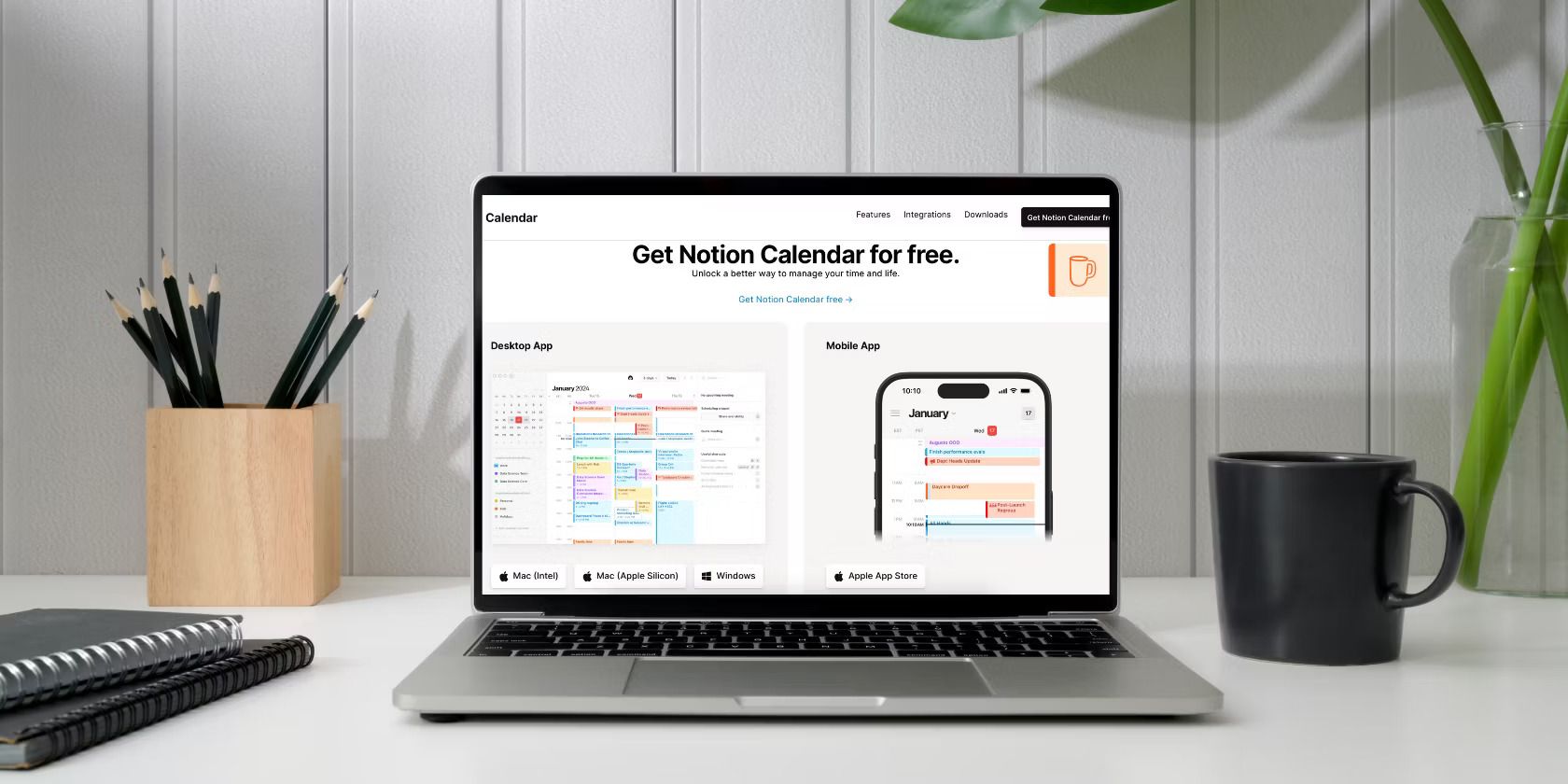
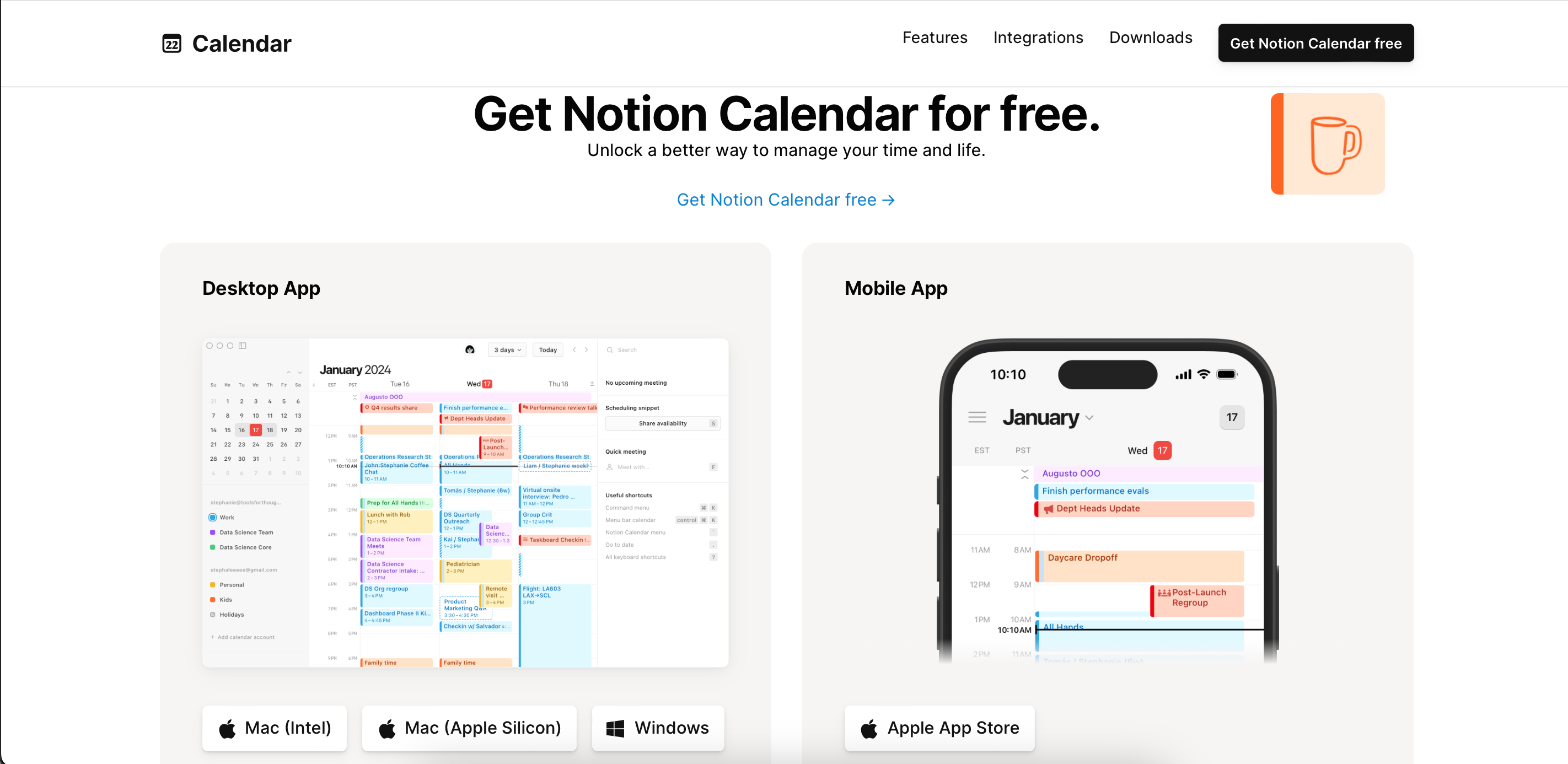
The Notion Calendar app is available for macOS, Windows, and iOS. If you own a Mac, you can download the program on computers with both Intel and Silicon chips.
Getting Notion Calendar is a different process for computers and smartphones. Below, you’ll find the steps required for both.
How to Get Notion Calendar on Your Computer
To download Notion Calendar for Windows or macOS, follow these instructions.
- Navigate to the Notion Calendar website.
- Click on Downloads.
- Under the Desktop App section, choose from: Mac (Intel), Mac (Silicon), and Windows.
- Follow the remaining instructions on your respective device. You’ll need to drag and drop the Notion Calendar icon into the Applications folder if you use a Mac.

How to Download Notion Calendar for iOS
To download the Notion Calendar app for your iPhone:
- Go to the App Store.
- Tap on the Search tab.
- Type Notion Calendar and press Search.
- Download Notion Calendar when you see it.
If you’re thinking about bringing all of your workflows into one place, check out this guide on the types of productivity tools that Notion can replace.
How to Use Notion Calendar to Manage Your Time
After you’ve downloaded Notion Calendar, you’re ready to begin using it to effectively manage your time. Below, you’ll find step-by-step tutorials for the most essential productivity functions in Notion Calendar.
Connecting Your Existing Calendars to Notion Calendar
If you already plan your week in Google Calendar or a similar app, you might simply want to integrate everything within Notion Calendar rather than starting from scratch. At the time of writing in January 2024, you can’t incorporate other apps aside from Google Calendar—such as Apple Calendar—into Notion.
The good news is that if you use Google Calendar, integrating your existing schedule within Notion Calendar is very easy. Here are the steps you should follow on your computer.
- On the left-hand side, select + Add calendar account.
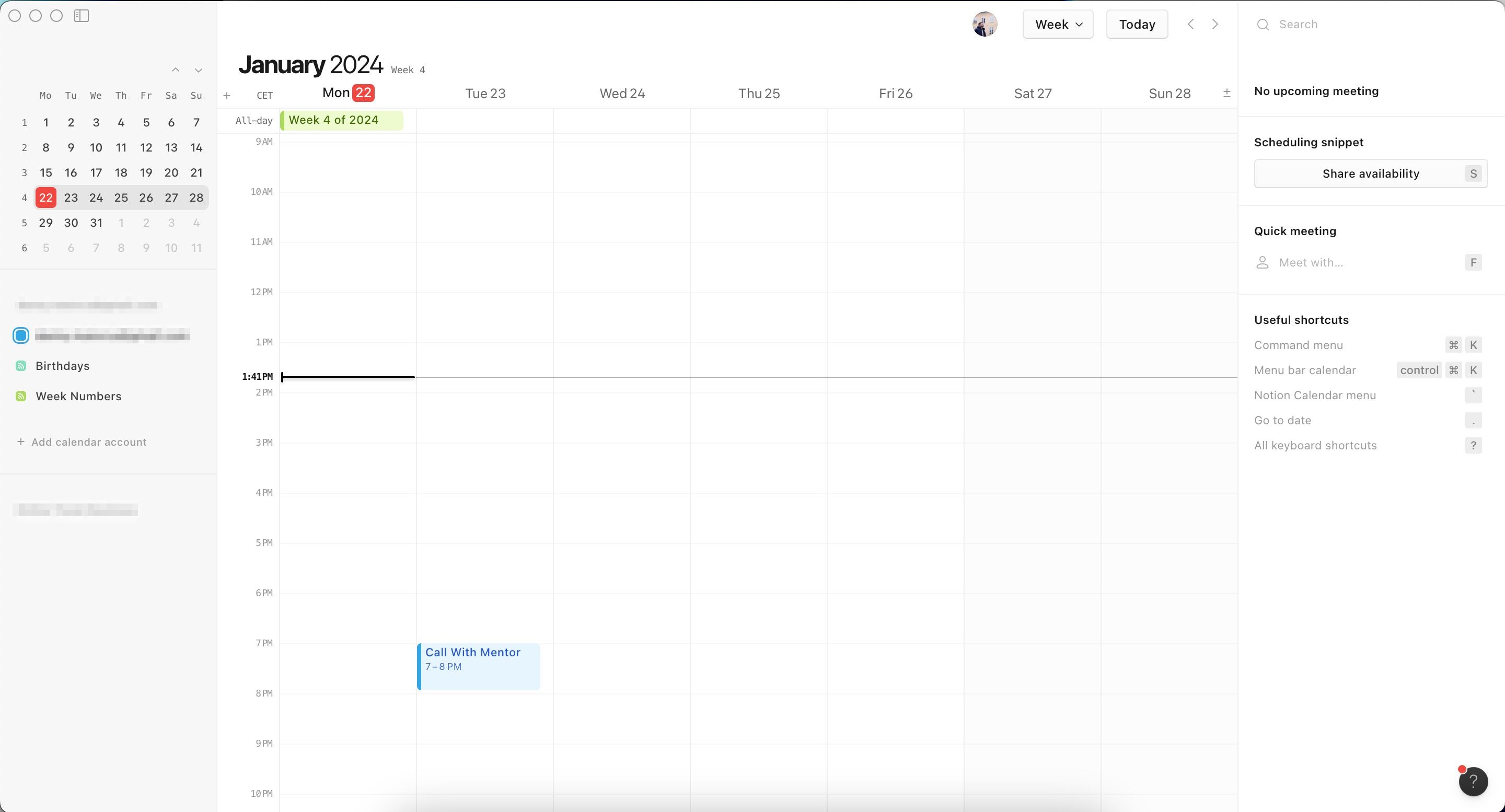
- Go to Integrations and tap Calendars.
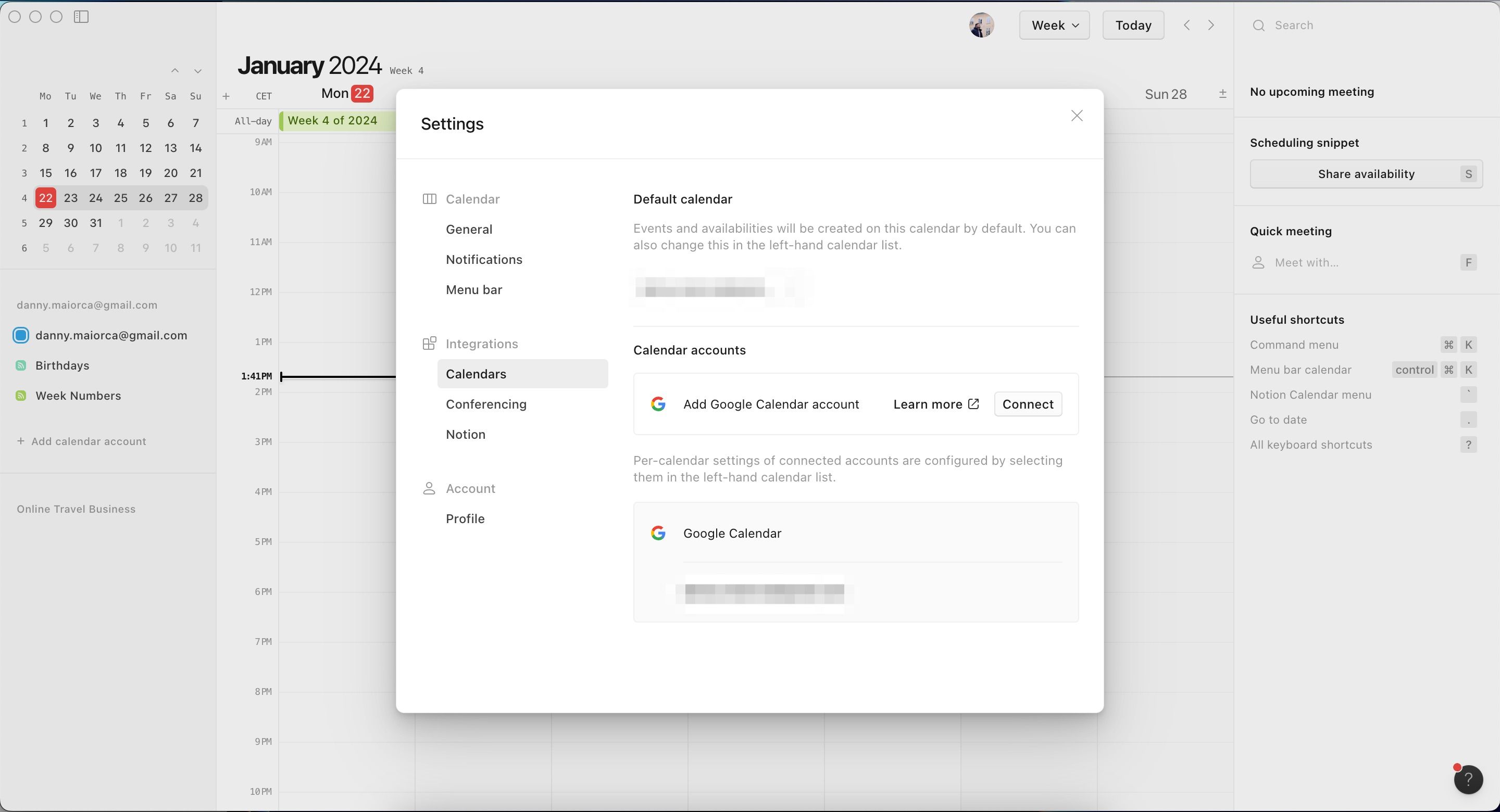
- Under Calendar accounts, choose Connect.
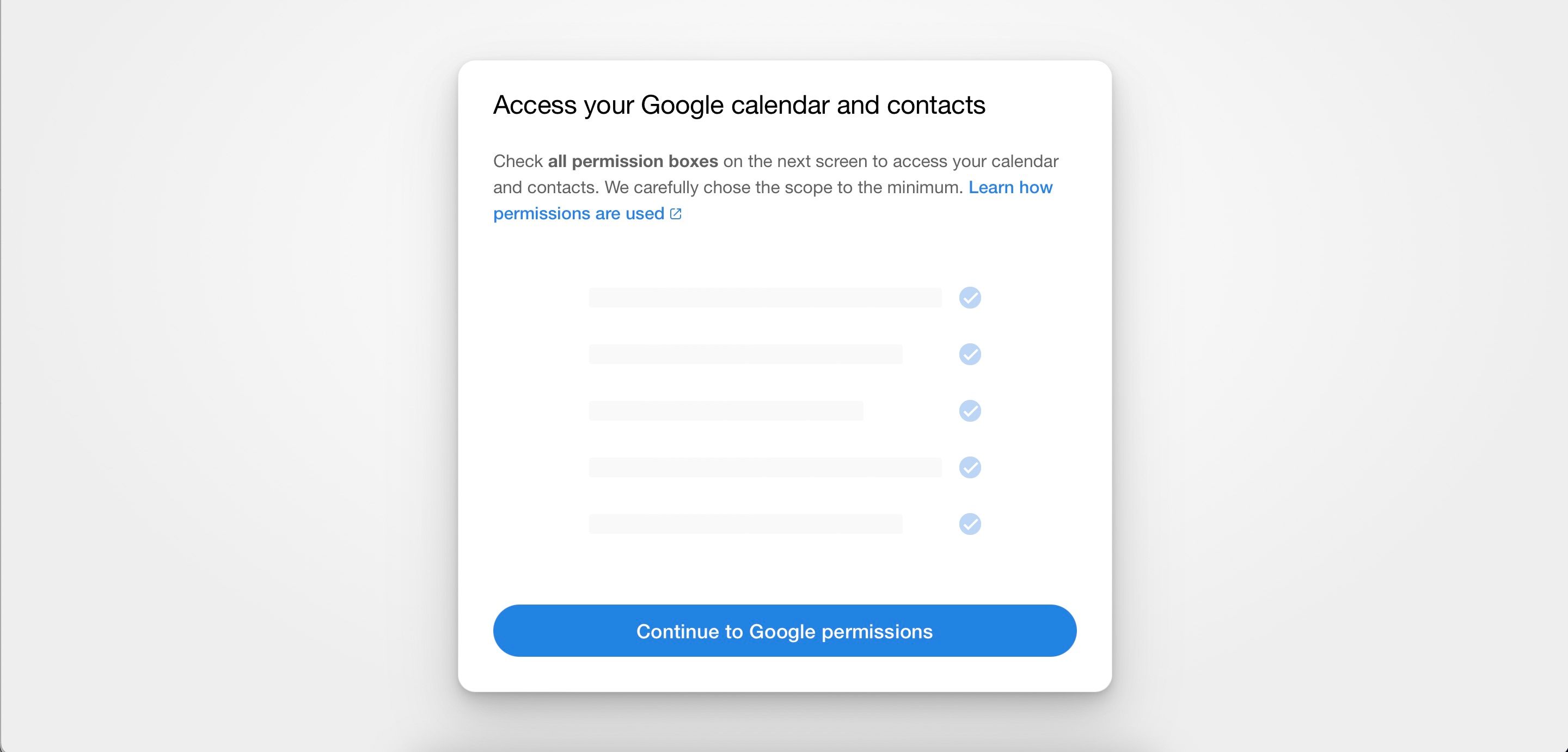
- A new tab should open in your browser. Click on Continue to Google Permissions.
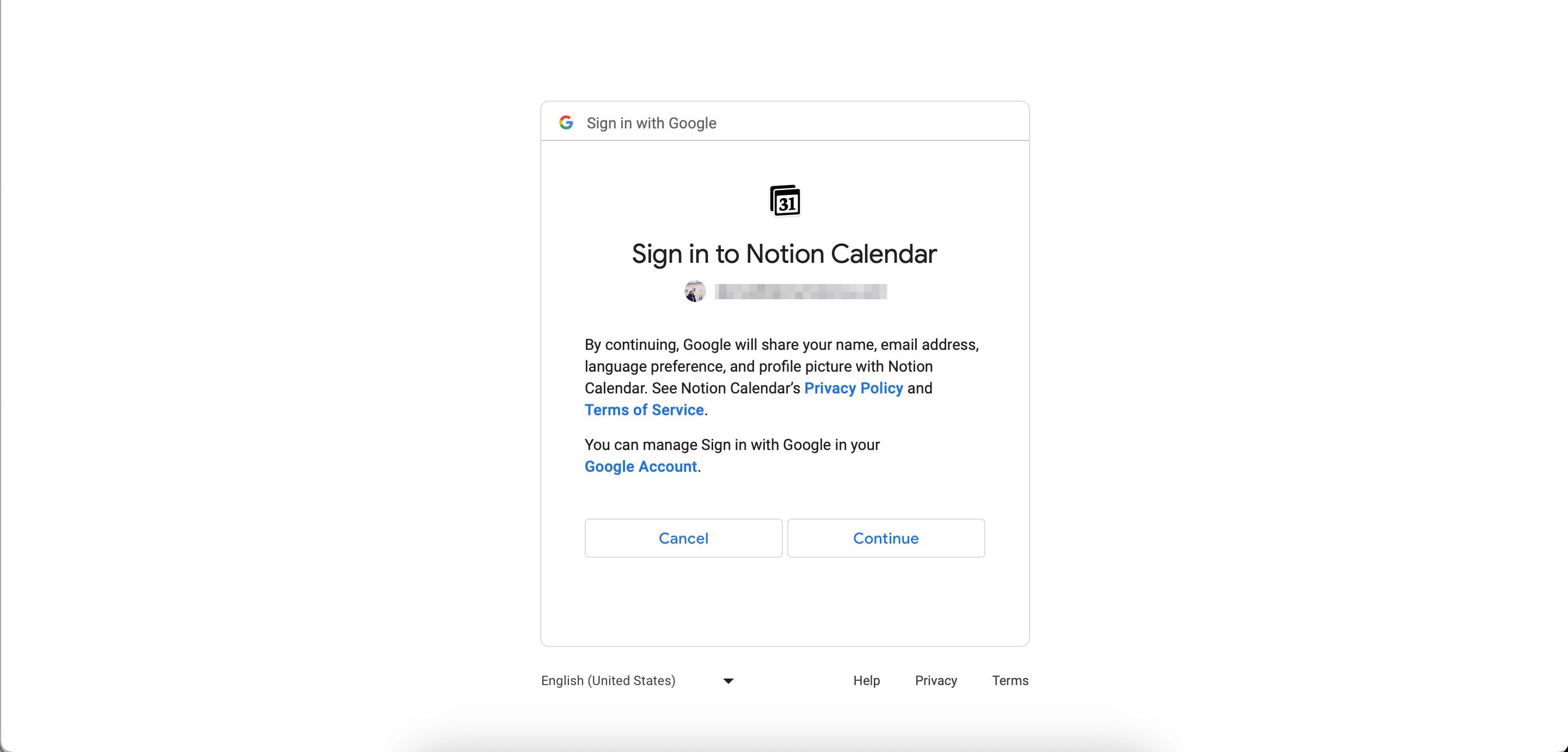
- Choose and sign into the Google account you’d like to integrate within Notion Calendar.
- Select Continue.
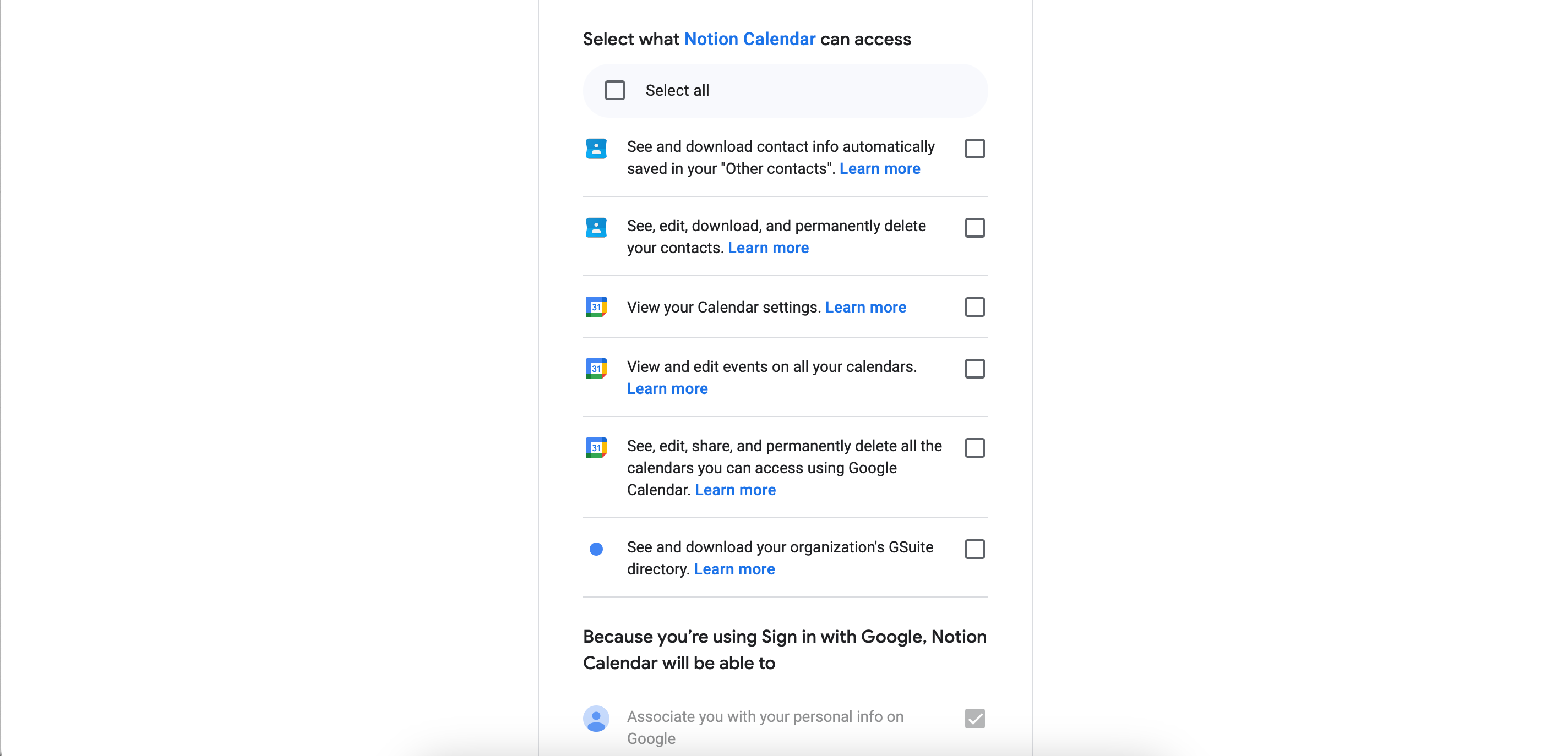
- Tick the boxes next to everything you want to grant Notion Calendar access to.
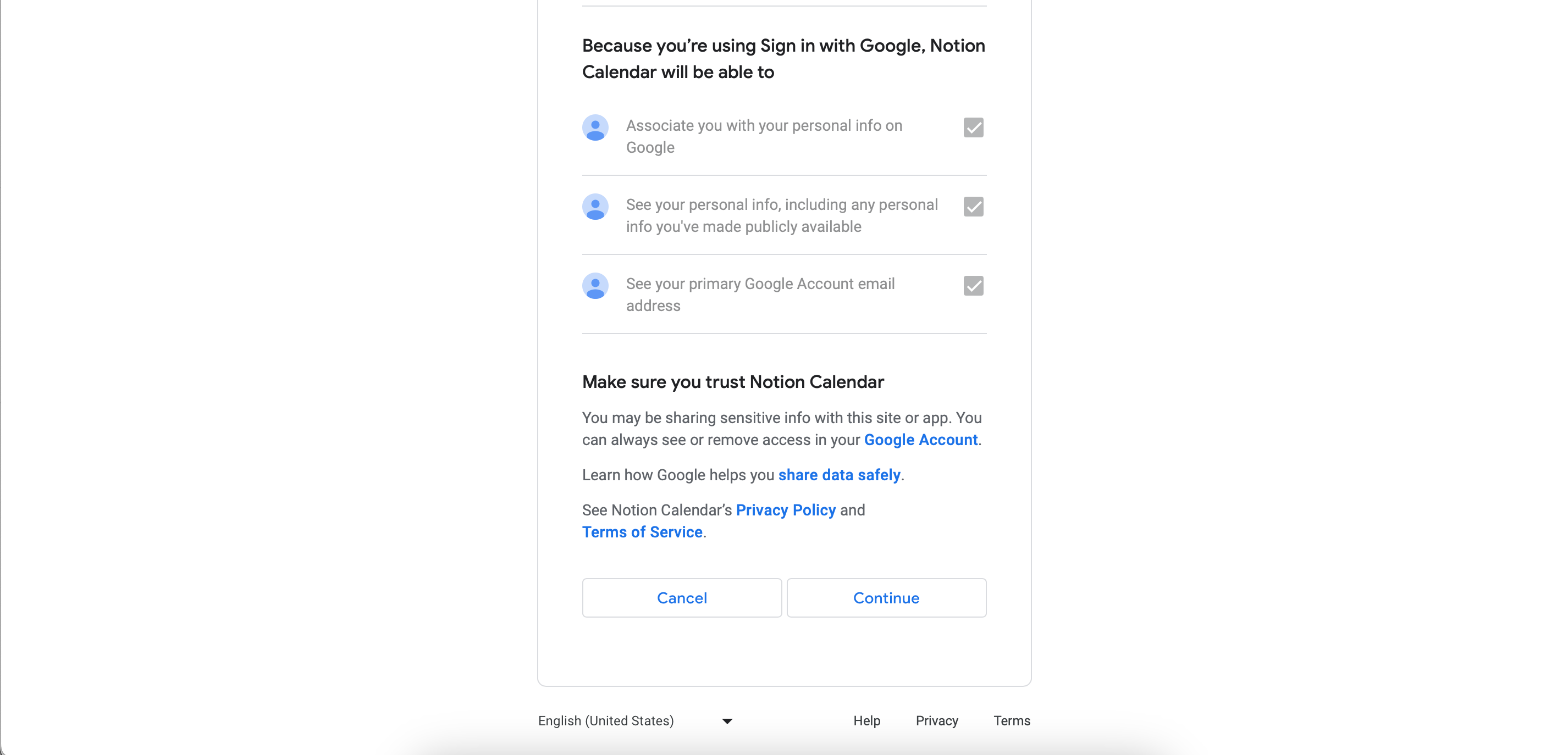
- Scroll to the bottom and select Continue.
- If a pop-up menu asks if you’d like your website to open Notion Calendar, give it permission. After a few seconds, your new calendar should have integrated within the app.
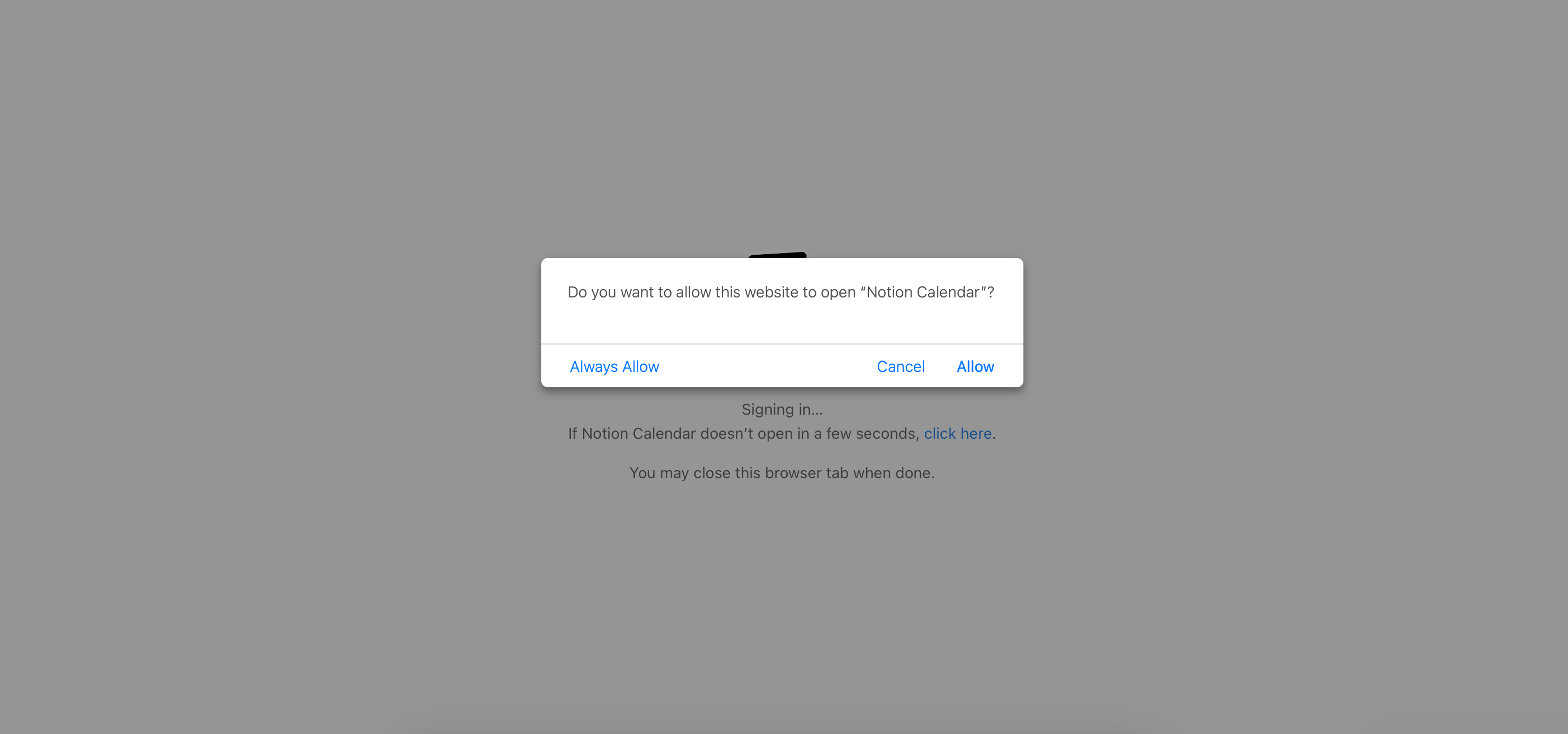


On the Notion Calendar iOS app, integrating your calendar is a slightly different process.
- Open the Notion Calendar app and select the hamburger icon in the top left-hand corner.
- Select + Add calendar account.
- Press Connect next to Add Google Calendar. When you’re asked if you can allow Google to sign in, tap Continue.
- The following steps are the same as they would be if you integrate your calendar on a computer. Sign in to your Google account and grant access to the Notion Calendar app.
How to Add New Tasks to Notion Calendar
Adding new tasks and appointments to the Notion Calendar app is incredibly straightforward. On Windows or Mac:
- Double-tap on the place you’d like to add a new event.
- Give your event a name in the Title text box.

- Tap on the time and date boxes to customize these. Then, add participants, locations, and everything else you need.
- When you’ve finished, tap anywhere on your screen.

On your iPhone, follow these steps instead.
- Either tap the + button or press and hold on to your calendar screen to create a new event.
- Customize the title and other categories. Then, press Done in the top right-hand corner.
Changing the colors of your tasks in Notion Calendar can make it easier for you to organize everything. To do this, open your task and tap the color next to the calendar it’s associated with. Under Event color, pick your new color.
If you want some help managing your time more effectively, consider checking out our guide on how to plan your day in Notion.
How to Change Your Notion Calendar View
Toggling your calendar view can make it easier to manage your time by showing what’s upcoming for you in a smaller or larger period of time. Again, the process is different depending on whether you use Notion Calendar on iOS or your computer.
Follow these steps to change the calendar view in Notion Calendar on your computer:
- Tap the + icon next to the dates.
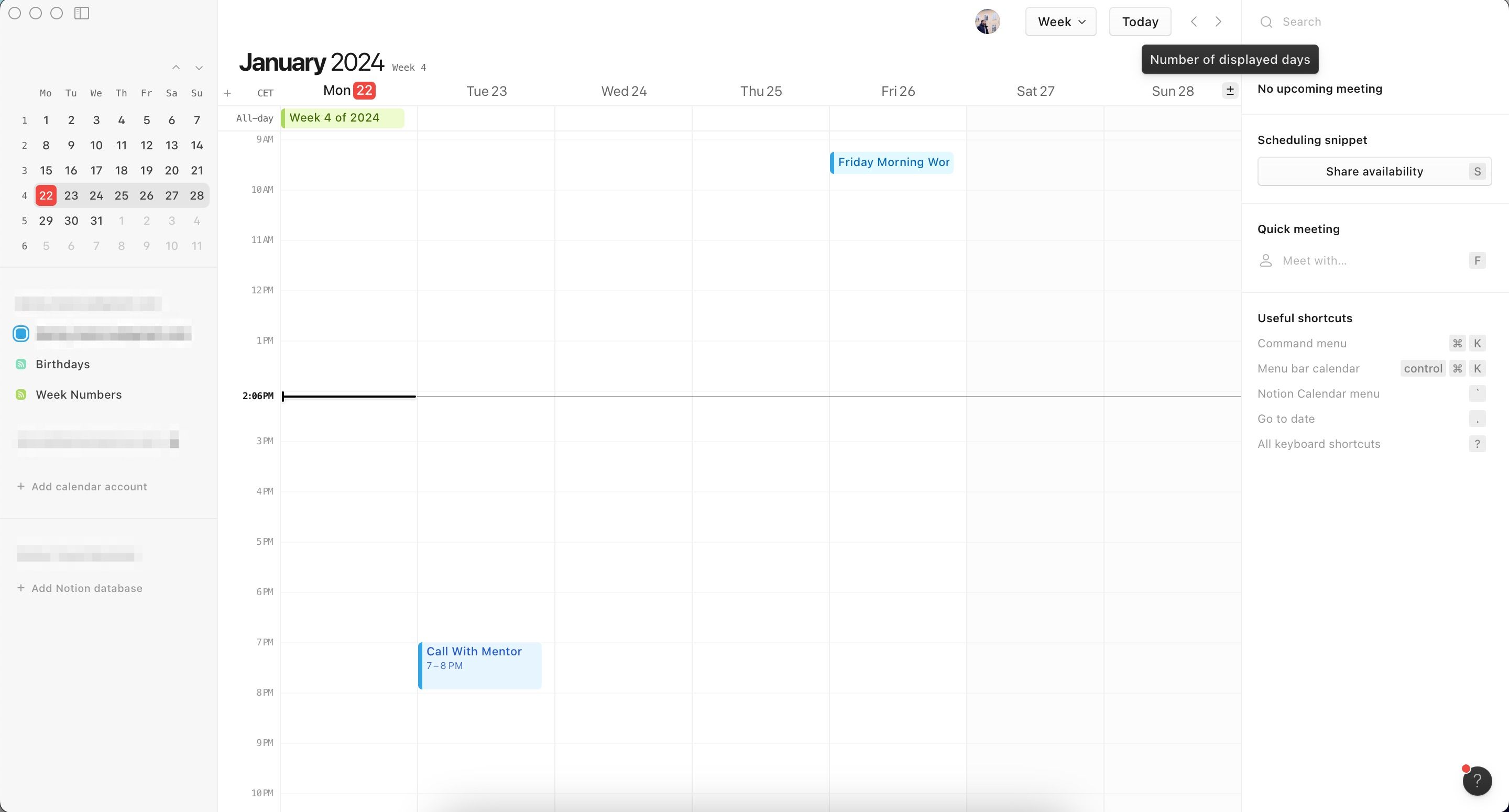
- Press + or –, depending on how many days you want to be visible.
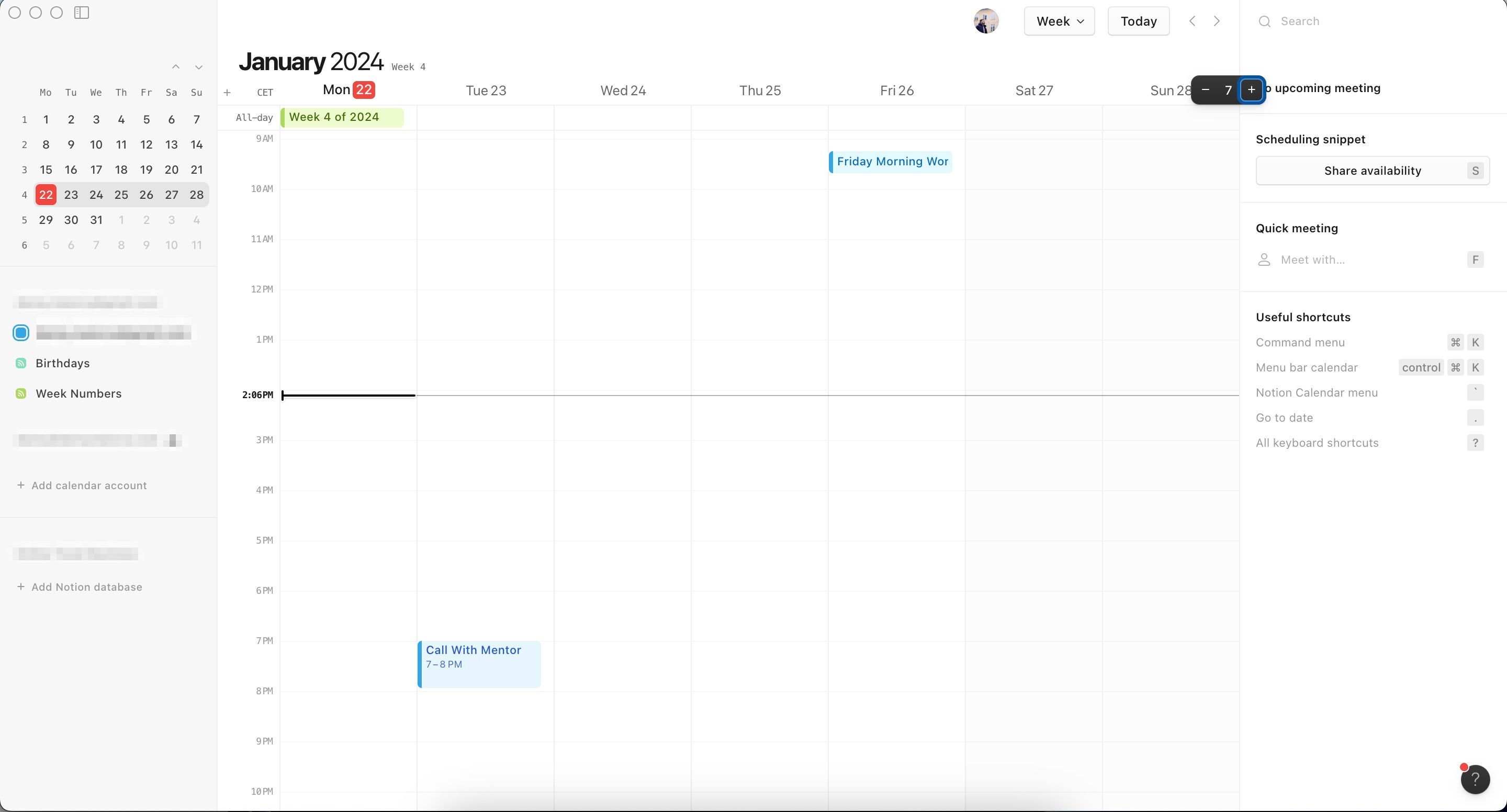


You can also type how many days you want to be visible in Notion Calendar (e.g. type the 3 button on your keyboard to only show three days). This only works from 1-9, though.
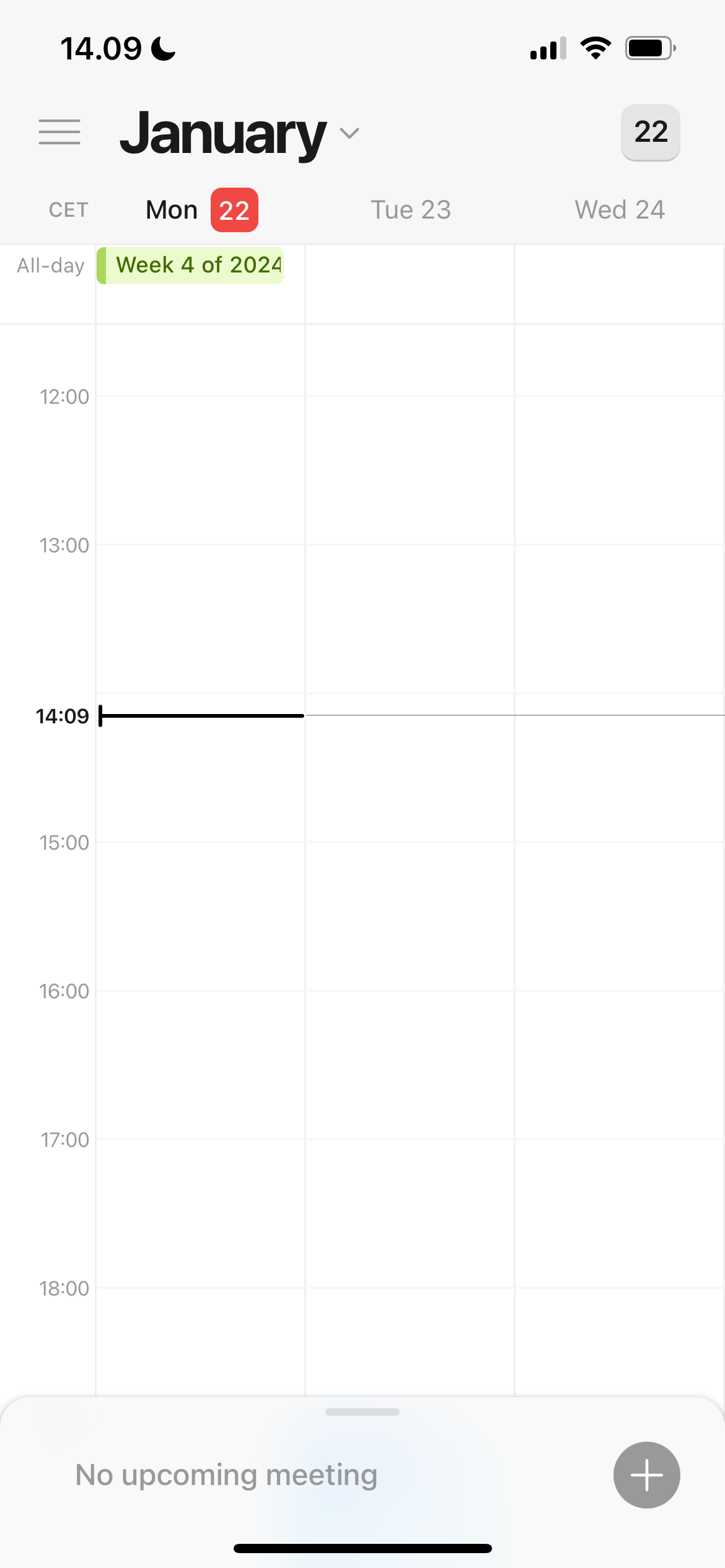
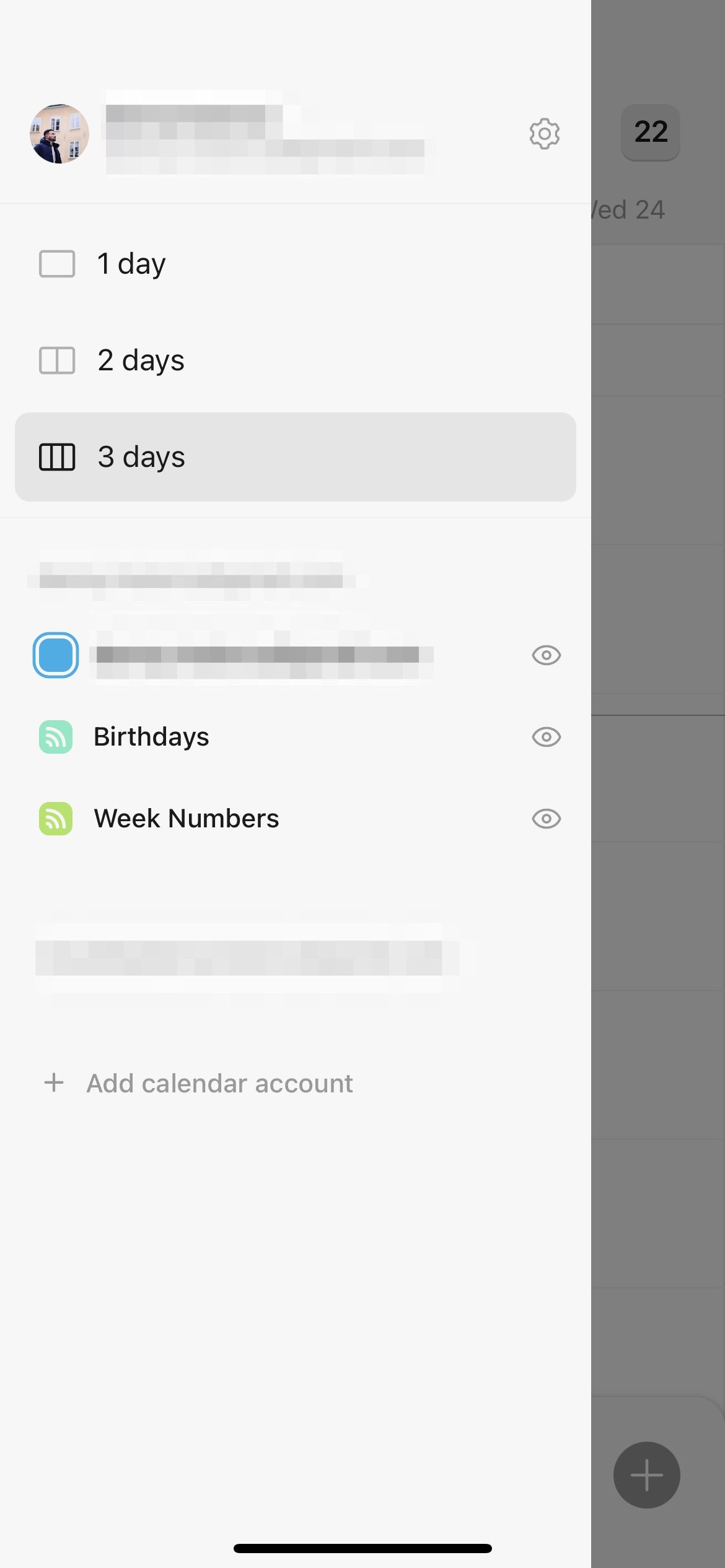
On your iPhone, you’ll need to do the following instead. Note that you can only see up to three days at a time.
- Tap the hamburger icon.
- Choose from 1 day, 2 days, or 3 days—depending on your preference.


Notion Calendar effectively helps you keep everything more organized in your Notion workspace, and it’s a perfect companion to the main Notion app. You can use the app both on your own and with others, and customizing your events is easy. You should now have all the information you need to effectively use the program’s most important features.