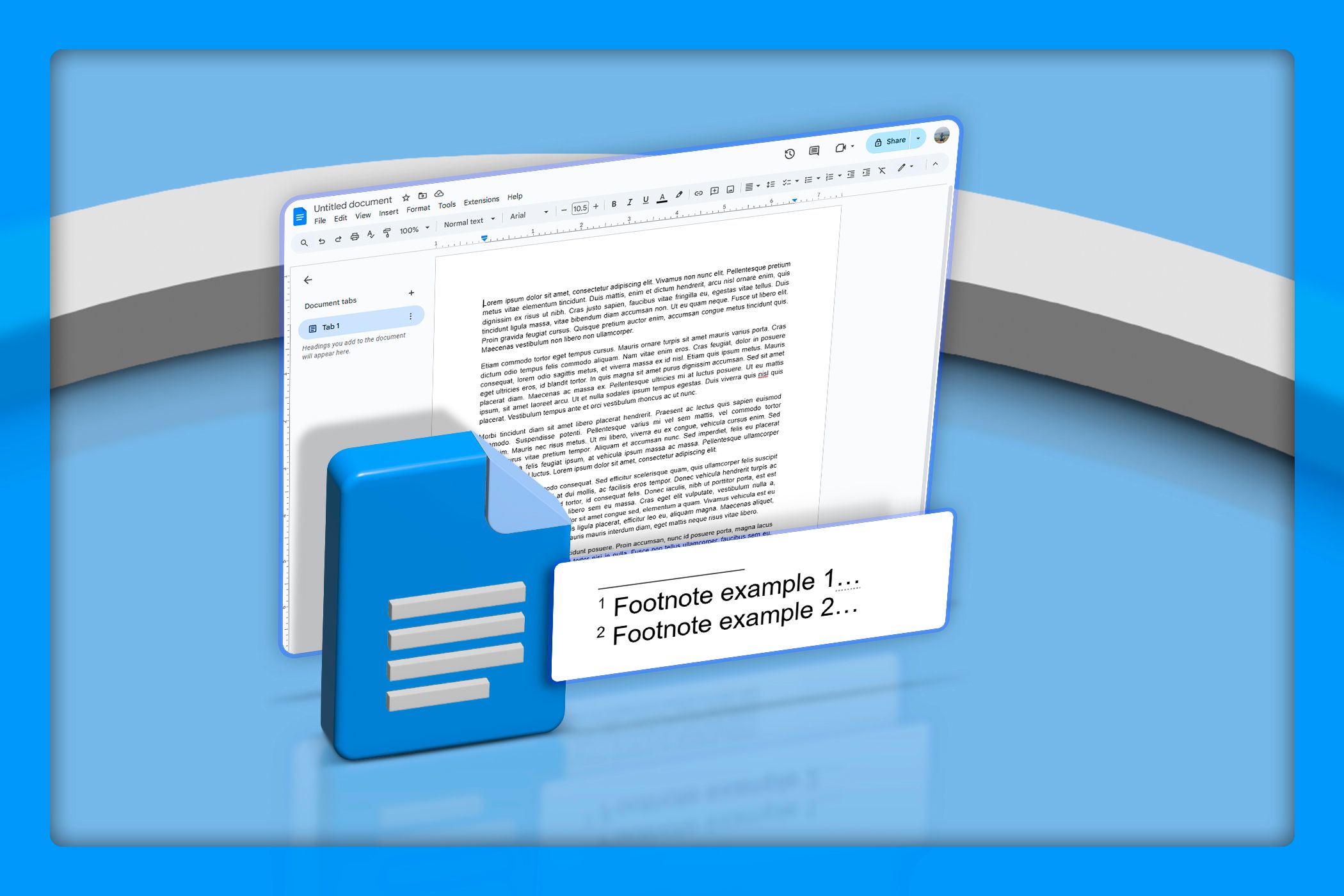

Footnotes are a handy way to provide extra information or cite sources without cluttering up the main body of your text. Whether you’re working on a research paper, an academic essay, or want to add additional context to your document, Google Docs makes it easy to insert and manage footnotes.
If you’ve used word processors like Microsoft Word, adding footnotes in Google Docs follows a similar process. Here’s how to add them in just a few steps:
- Place your cursor where you want the footnote number to appear in the text.
- Go to the Insert menu at the top of the screen.
- Scroll down and select Footnote from the dropdown.
- A number will appear where your cursor is, and a corresponding space will open at the bottom of the page for you to type your footnote.
- Type in your footnote.

Once you’ve added your footnote text, Google Docs automatically numbers it and positions it correctly, saving you from formatting headaches.
If you need to change the content of a footnote, scroll to the bottom of the page where the footnotes are listed and click on the text. You can edit it just like any other part of your document.
To remove a footnote, delete the superscript number in the main text. Google Docs will automatically remove the footnote from the bottom of the page and renumber the remaining ones to keep everything in order.

Google Docs automatically updates footnote numbering if you add, remove, or move sections around, so you don’t need to worry about manually renumbering them.
Tips for Consistent Document Styling
Consistency is key to keeping your document looking polished. Use the same font for footnotes as your main text but consider a slightly smaller size, like 10 pt, to avoid distracting from the content.
Stick to single-spacing for footnotes unless a specific style guide requires otherwise. If you use bold or italics in the main text, applying the same style to footnotes keeps everything cohesive.
Finally, if you’re writing for a professional or academic audience, follow a citation style guide like APA or Chicago to ensure your footnotes are formatted correctly. If your document contains numerous citations, it’s better to create a references page instead of using footnotes.
Footnotes are a useful tool for adding extra information or citations to your document without disrupting the flow of your main content. With Google Docs, inserting and managing them is straightforward, and with a few simple styling tips, you can ensure they blend seamlessly into your document.