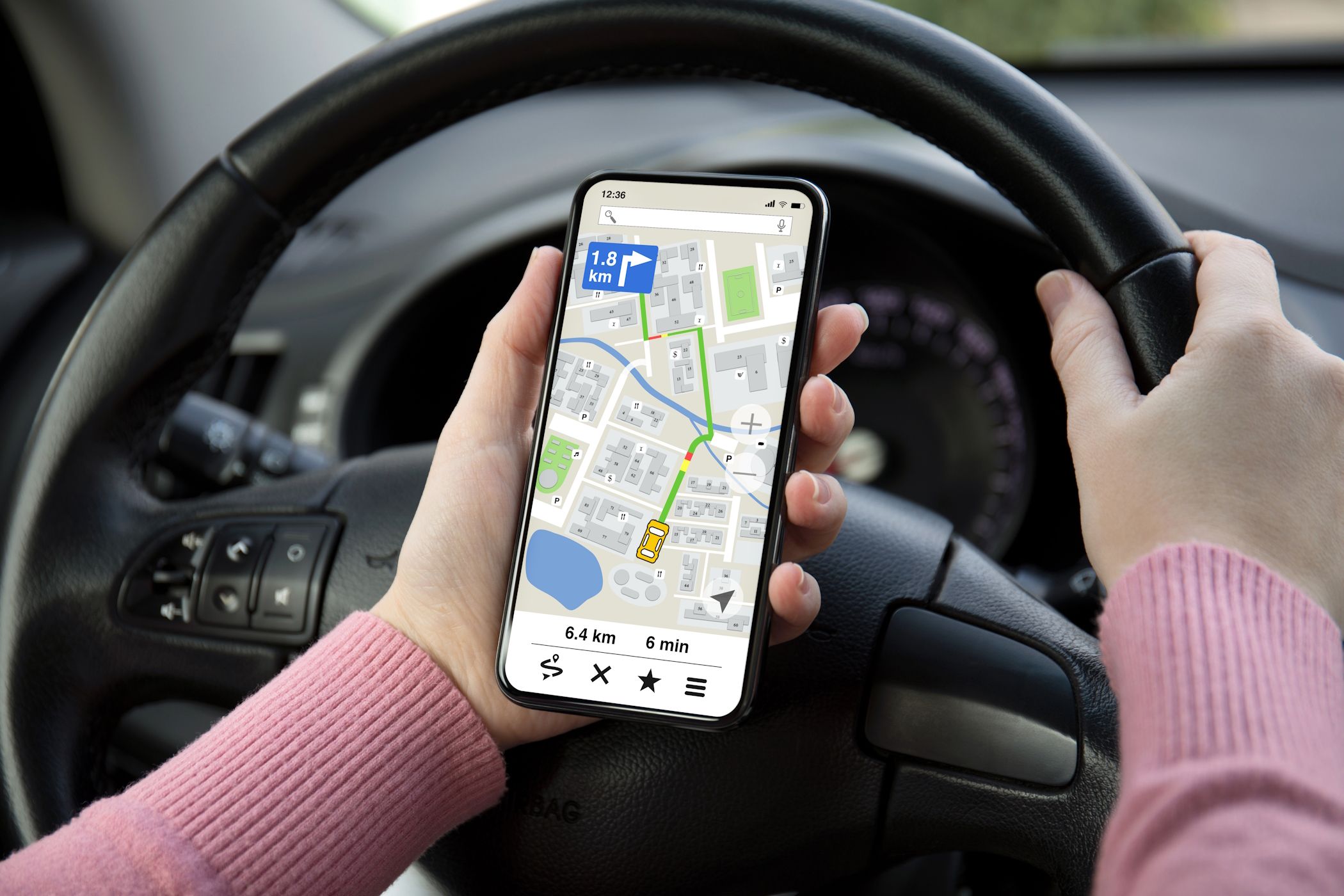

Apps on your Android phone require location access to perform various functions, but that doesn’t mean you have to sacrifice your privacy. Android offers several options to control which apps can track your whereabouts. We’ll discuss them below.
How to See Which Apps Have Location Permissions
Granting permissions to Android apps is straightforward, and you might sometimes do it quickly when using the app for the first time. Thankfully, Android shows which apps can access your location data in one central menu within the Settings app. Here’s how to access it:
- Open the Settings app on your phone.
- Scroll down to tap on Location.
- Select App location permissions to view a list of apps categorized based on their location access. Under the “Not allowed” section, you will see a list of apps that don’t have access to your location.
How to Change Location Permissions for Android Apps
You can easily adjust the location settings for your apps from the same App location permissions menu. Simply select the app for which you want to change location permissions and choose from one of the following options: Allow all the time, Allow only while using the app, Ask every time, or Don’t allow.
Note that the available options in the location permission menu may vary for different apps. When granting an app location permission, you can also enable the Use precise location toggle if necessary. This setting helps apps like Uber and Google Maps detect your location as accurately as possible.
How to Check Which Apps Have Recently Requested Your Location
In addition to seeing which apps have location permissions, Android also keeps a record of when an app accesses your location, along with other important smartphone permissions. You’ll need to use Android’s Privacy Dashboard feature to view this. Follow these steps:
- Open the Settings app and head to Security & privacy.
- Tap Privacy and select Privacy Dashboard from the dropdown menu.
- On the next page, choose Location to go to the Location usage page.
On the next page, you’ll see a 24-hour timeline showing which apps recently accessed your location data with the exact times they did. By default, Android does not display location usage for system apps and services. To include them in the timeline, tap the three-dot menu in the top-right corner and select Show system.
You can also quickly see which apps recently accessed your location data by heading to Settings > Location.
If you can’t find the Privacy Dashboard feature on your Android device, you can use a dedicated app to manage Android app permissions, which offers a similar experience.
Managing location permissions on Android doesn’t have to be so complicated. Following the steps above should help you limit the location access for third-party apps and regain control of your privacy.