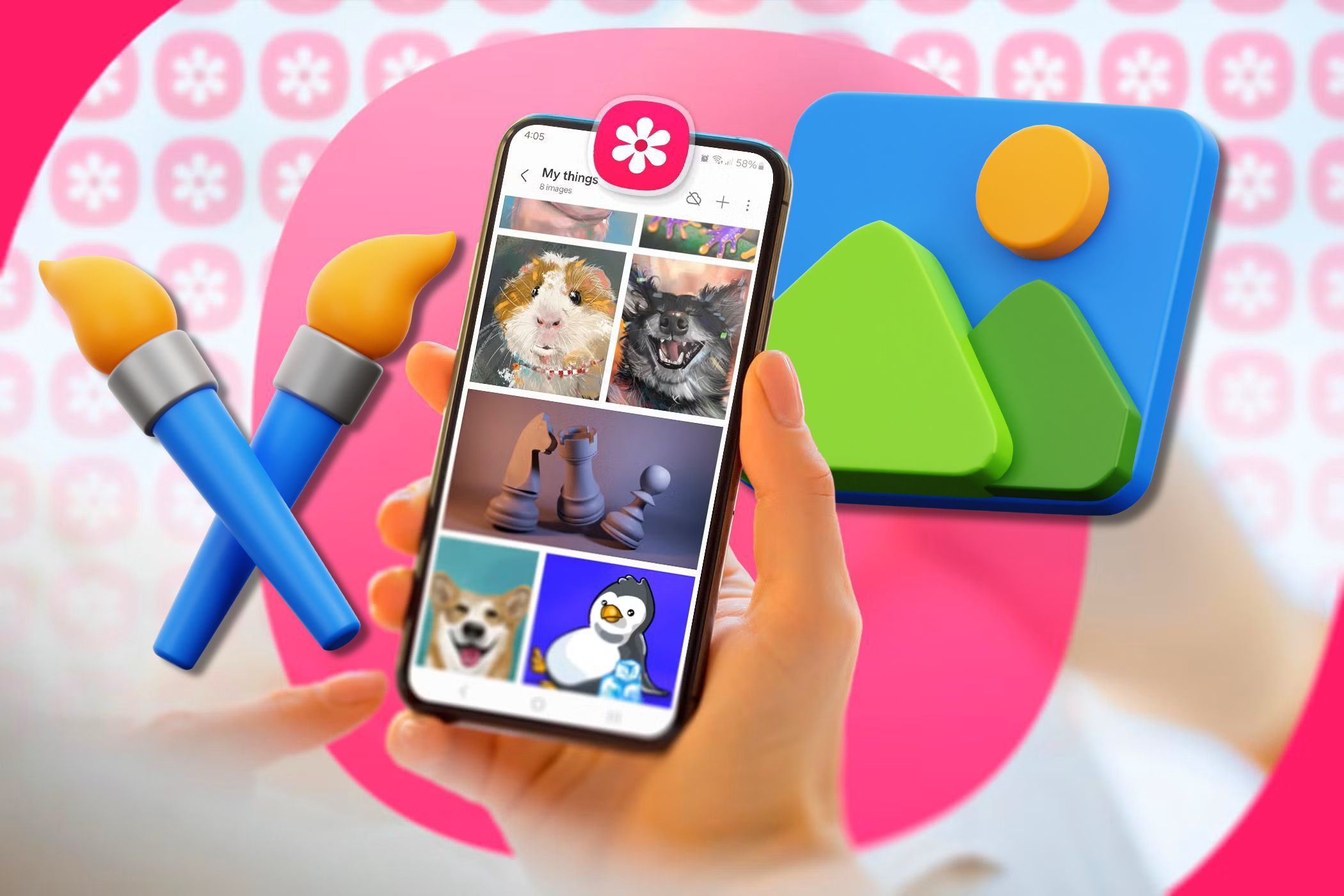

Messaging and social media apps compress your files and sacrifice quality for speed. If you want to share your photos and videos in original quality, Samsung’s Quick Share is a great alternative.
How to Create a Share Link to Send Files on Samsung
Quick Share lets you send files from your Galaxy phone in original quality to anyone, regardless of whether they are in your contacts or the operating system they use, via a simple share link.
Here’s how create a share link using Quick Share on your Samsung phone:
- Open the gallery app and select your desired image or video.
- Tap Share and select Quick Share from the menu of options.
- On the following screen, tap the QR code or link and then tap Copy URL at the bottom of the pop-up showing the QR code.
- The link is now copied to your clipboard. Go ahead and share it with your desired recipients. Anyone with this link will be able to access your shared file for a preset amount of time.
You can send up to 10GB of data per day, so storage shouldn’t be an issue at all.
Plus, you can view, manage, and stop sharing your files at any time. To do so, go to Settings > Connected devices > Quick Share > Link sharing history. Here, you can see the files you sent along with their expiry date. When the link expires, no one will be able to access your files.
Related
4 Ways to Send Photos and Videos From iPhone to Android Without Losing Quality
Compression should be the last thing on your mind when transferring media to Android users.
To stop sharing a file manually before the expiry, simply long-press on it and select Delete, and tap the pop-up to confirm the deletion.
Quick Share is the best way to send files from a Samsung phone, and there’s really no need to download other third-party apps that may not be as quick.