
Key Takeaways
- Restarting your Fire TV Stick can solve most common issues.
- You can clear the cache and uninstall unnecessary apps to free up space on your Fire TV.
- You can also check your subscription status to fix issues with Prime Video.
Have you ever been unable to watch your favorite show because your Fire TV Stick doesn’t work as it should? It can happen anytime, but these troubleshooting tips for Fire TV will help with a few common issues that users might face.
Fire TV Stick Troubleshooting Basics
Unplugging the Fire TV Stick, restarting it, or, as a last resort, starting over and restoring it to the factory defaults may be the answer to any problem.
Before you factory reset, you should try the following troubleshooting steps.
1. Clear the Fire TV Cache or Uninstall Unnecessary Apps
If your Fire TV is sluggish, its hard drive may be full. You can clear hard drive space by following these steps.
- Hold the remote Home button for a few seconds and go to Settings.
- Go to Applications.
- Select Managed Installed Applications.
- Select Sort and choose App Size.
- Scroll down to the first app in the list and select it.
- Scroll down to select both Clear cache and Clear data.
- Repeat these steps for each app that is taking up a large amount of space on your Fire TV.
- Select Uninstall for any apps you don’t need.
2. Update Your Fire TV Software
Any device with outdated software can cause problems. Ensure your Fire TV has the latest updates to keep it working smoothly.

To check for updates, follow these steps:
- Hold the remote Home button for a few seconds and go to Settings.
- Select My Fire TV.
- Select About.
- Scroll down and select Check for Updates.

If you have the option, update your software. You can view updated version information on the right.
3. Fix a Fire TV Remote That Is Not Working
Remote failure is probably the Fire TV’s most common error. Sometimes, for seemingly no reason, the remote stops working with the Fire TV Stick.
Before you go through any other troubleshooting steps, replace the batteries and see if that fixes the problem.
If not, follow these steps:
- Unplug the Fire TV Stick from its power source, wait 30 seconds, and plug it back in.
- Wait for the Fire TV Stick to boot up fully. Then check if the remote is working.
- If it still isn’t working, check the section on how to pair the remote with your Fire TV again.
Before you can pair the remote, you might need to use the remote app to control your Fire TV.
4. Factory Reset Your Fire TV
To factory reset your Fire TV Stick, follow these steps:
- Hold the remote Home button for a few seconds and go to Settings.
- Select My Fire TV.
- Select Reset to Factory Defaults.

This will restore the factory defaults to your device and allow you to set it up again.
What to Do If Your Fire TV Froze During Setup
The Amazon Fire TV Stick setup may have more steps than you expected. Follow along on how to set up your Amazon Fire TV Stick for the best results.
At some point, you may make a mistake and want to go back. But once you press the back button, the Fire TV Stick may freeze.
Don’t worry—it’s not the end of the world. All you need to do is reset the Fire TV Stick, and this will restart the Fire TV.
The two ways to reset the Fire TV Stick are:
- Hold the Play/Pause button and the Select button simultaneously for five seconds.
- If that doesn’t work, disconnect the power and then reconnect it.
How to Connect a Fire TV Stick to Wi-Fi
If your Fire TV disconnects from your home Wi-Fi, here are a few steps you can take to get back online:
- Restart the Fire TV Stick by unplugging it from its power source, waiting 30 seconds, and plugging it back in.
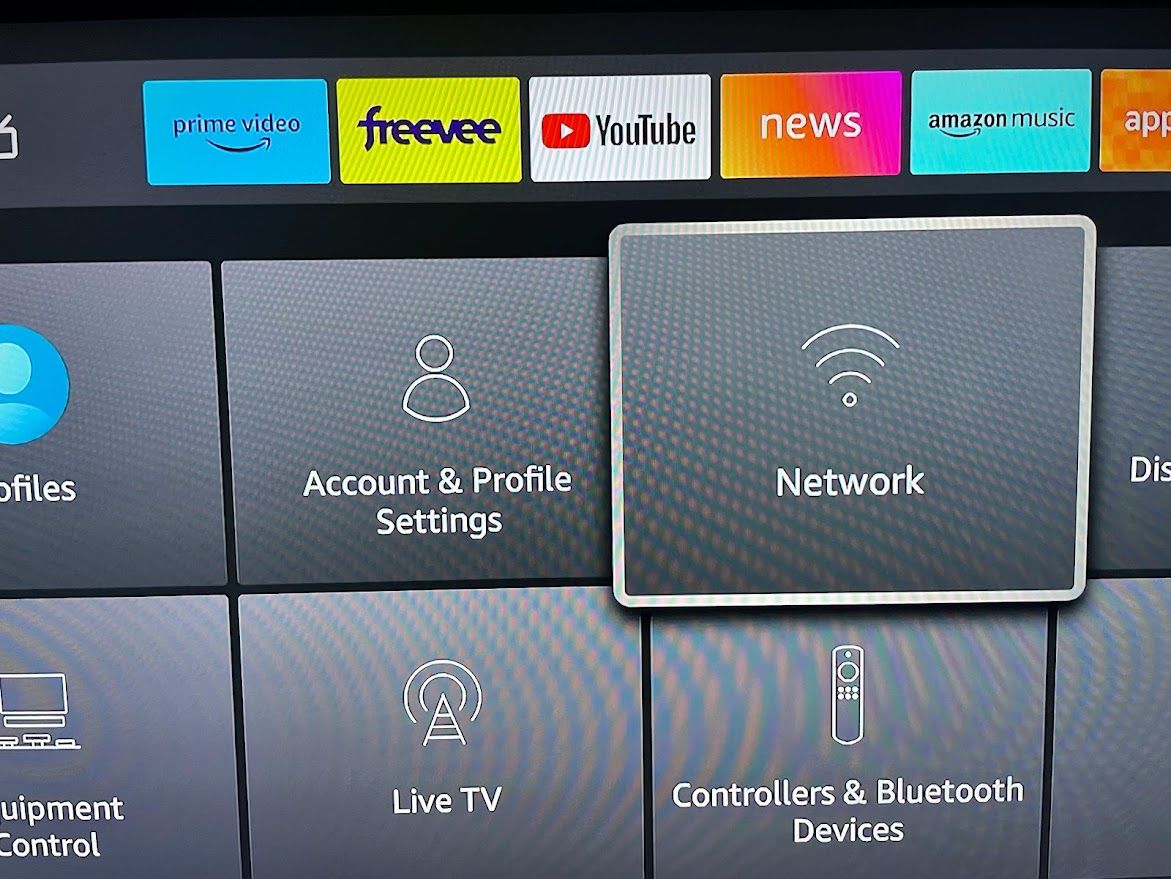
- Check the network status by going to Settings > Network. Find your Wi-Fi network and press Play/Pause to see its status.
- Follow the prompts.
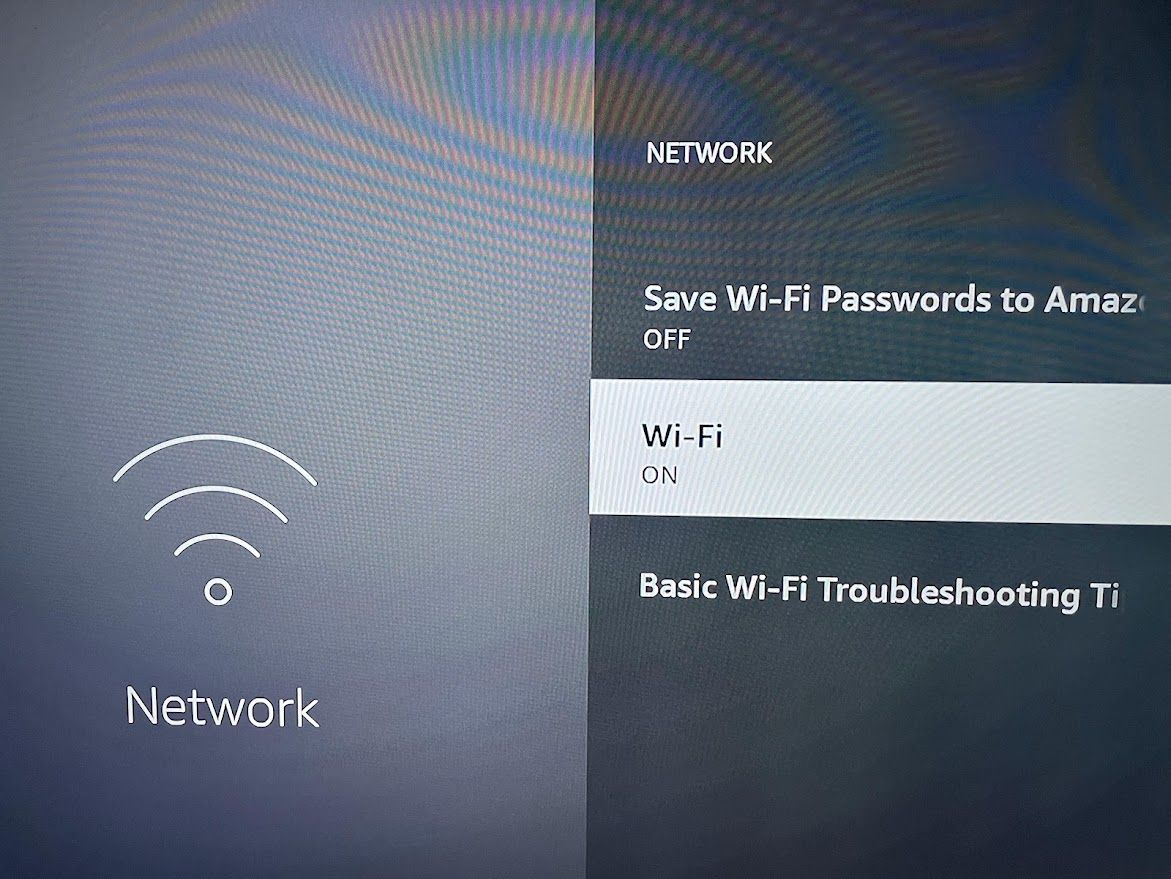
- If you don’t see your network name, scroll down and click on Wi-Fi. Confirm that you want to turn off Wi-Fi. Wait 30 seconds and turn it back on by clicking on it again.
- Restart your modem and router by unplugging them and waiting a minute. Wait for all lights to turn on before continuing.
- Forget your network. Highlight your Wi-Fi network, then press the menu button (three lines) on the remote. Press the Select button to confirm. Set up your Wi-Fi network again.

If none of these options work, restore your Fire TV to factory settings.
 How to Enable the Full Screen When the Video Is Cut From the Sides
If the four sides of the video seem like they are spilling past the edge of the screen, then your Fire TV Stick needs to be scaled to fit within your TV display. You can usually fix this problem by calibrating the display through the settings.
To do this, follow these steps:
- Hold the remote’s Home button for a few seconds until you see the option menu.
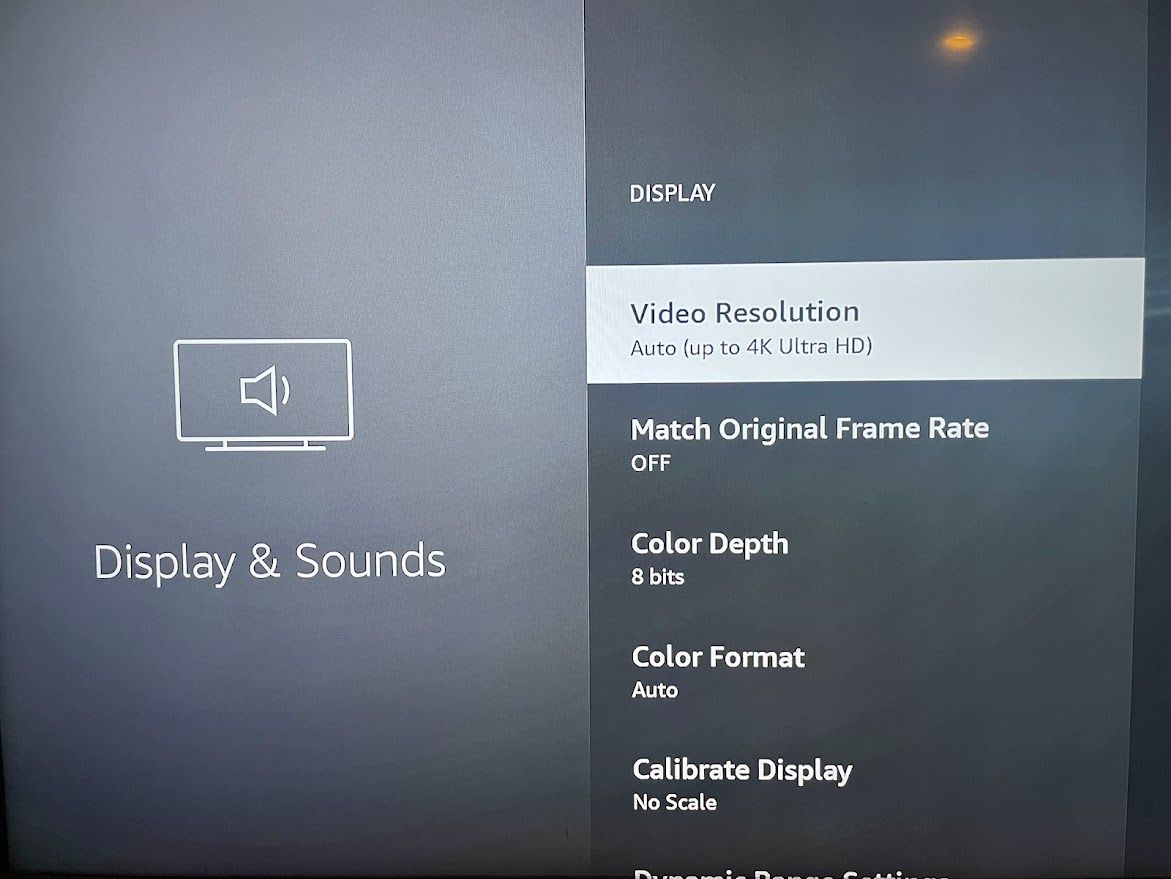
- Go to Settings > Display & Sounds > Display.
- Make sure the Video Resolution is set to Auto.
- Go to Calibrate Display.
- If the tips of the four arrows aren’t touching the edges of your TV screen, press the up and down buttons on the remote until the arrow tips are visible.
- Once the arrows are perfectly aligned, select Accept.

This should calibrate your display to the correct resolution and make sure that content isn’t cut off on the sides.
What To Do When There’s a Blank Screen When Watching Amazon Prime Video
If you are in the Amazon Prime Video app and the screen goes blank, one thing to check is your subscription status:
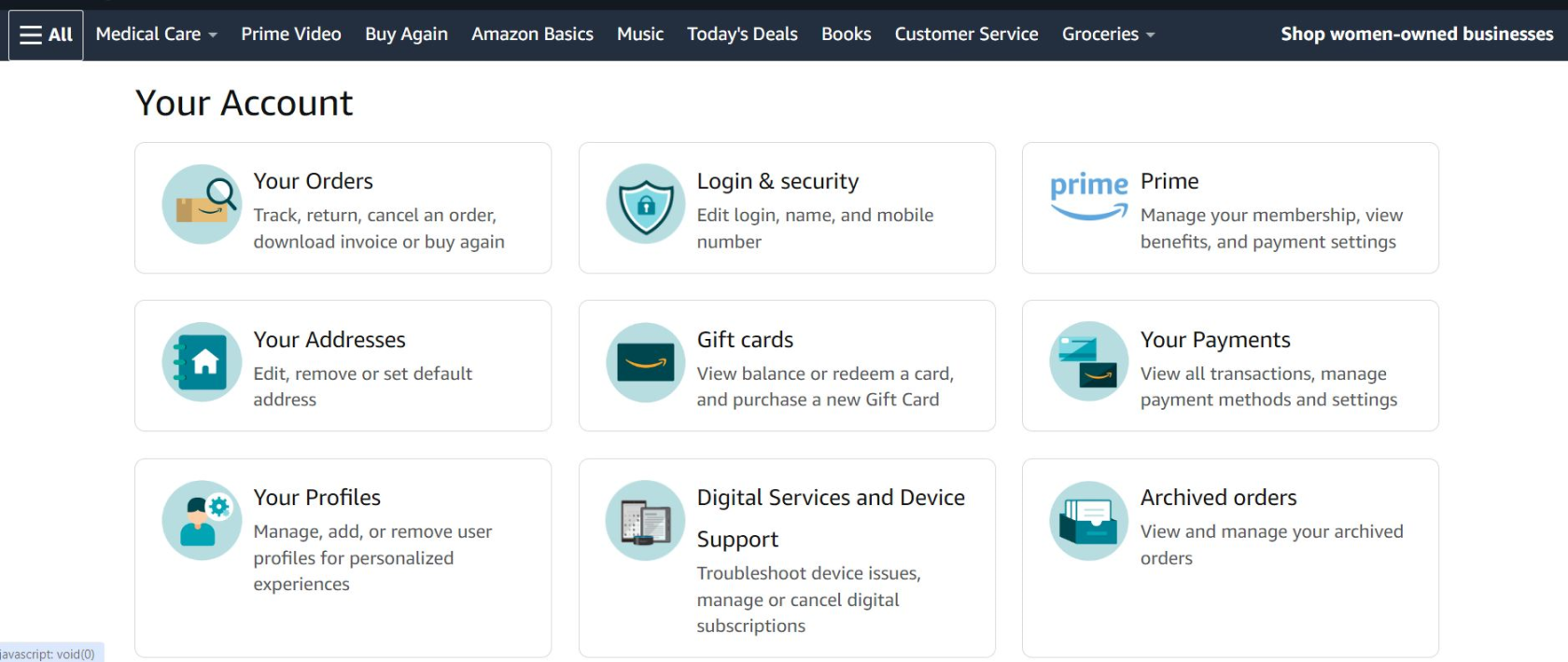
- In a web browser, go to the Amazon home page.
- Go to Accounts and Lists (upper right corner) on the Amazon home page, then click Account.
- Click on Prime. Check your renewal date and confirm that your Prime account is active.
- Get more details about what to do if Amazon Prime isn’t working.

How to Use the Fire TV Remote App
You can use the Fire TV remote app as a workaround to Fire TV remote problems.
To use the Fire TV remote app, follow these steps:
- Download and install the app for iOS or Android.
- Ensure your smartphone and Fire TV are on the same Wi-Fi network.
- Open the app and tap your Fire TV under Connect to Remote.
- Enter the four-digit code displayed on your Fire TV if prompted by the app.
- Use the app navigation buttons to confirm you can control your Fire TV.
How to Pair the Fire TV Remote
If experiencing remote issues or trying a new remote, the first step is to pair the remote with your Fire TV device.

- Using the remote app navigation buttons, go to Settings.
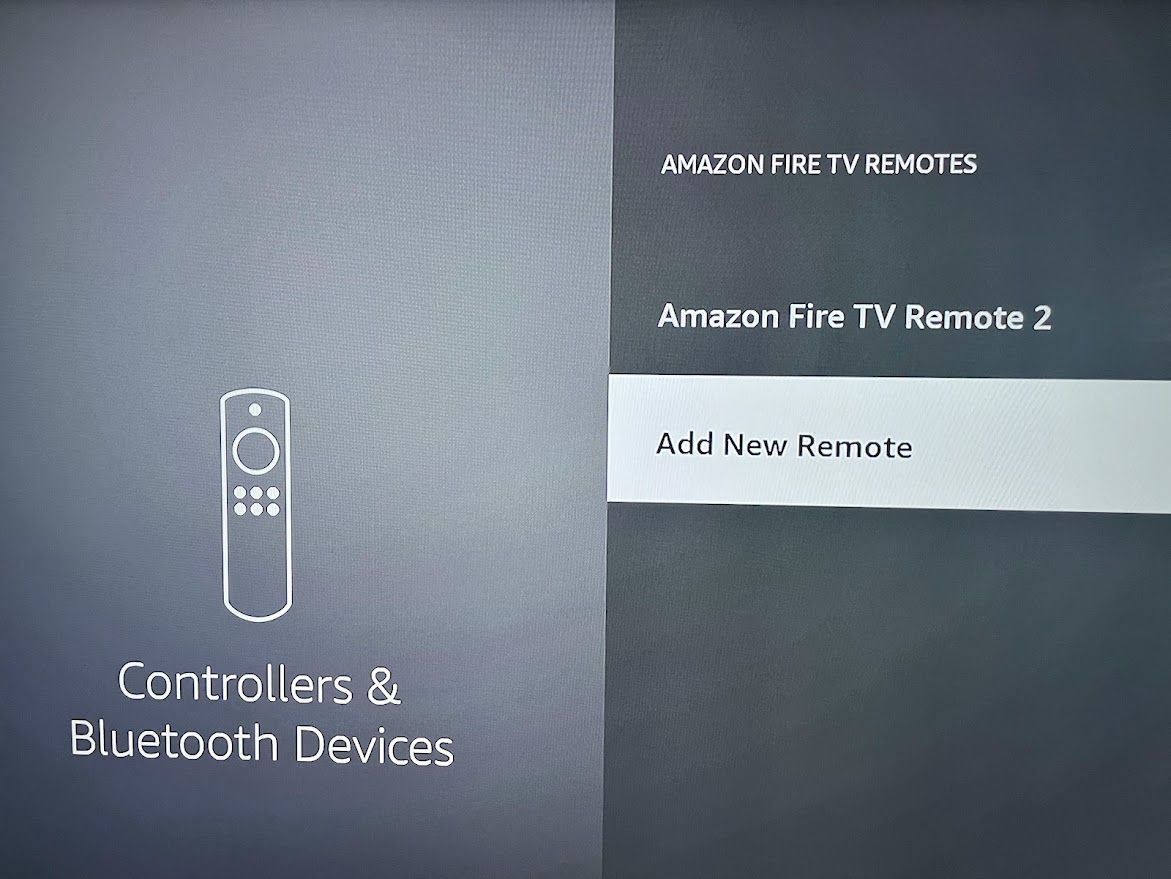
- Select Controllers & Bluetooth Devices.
- Select Amazon Fire TV Remotes.
- Select Add New Remote.
- Follow the instructions to search for and add your remote.
No matter the problem, you can often fix your Fire TV yourself. Take a deep breath and follow the tips here. If all else fails, you can always try reaching out to Amazon support.