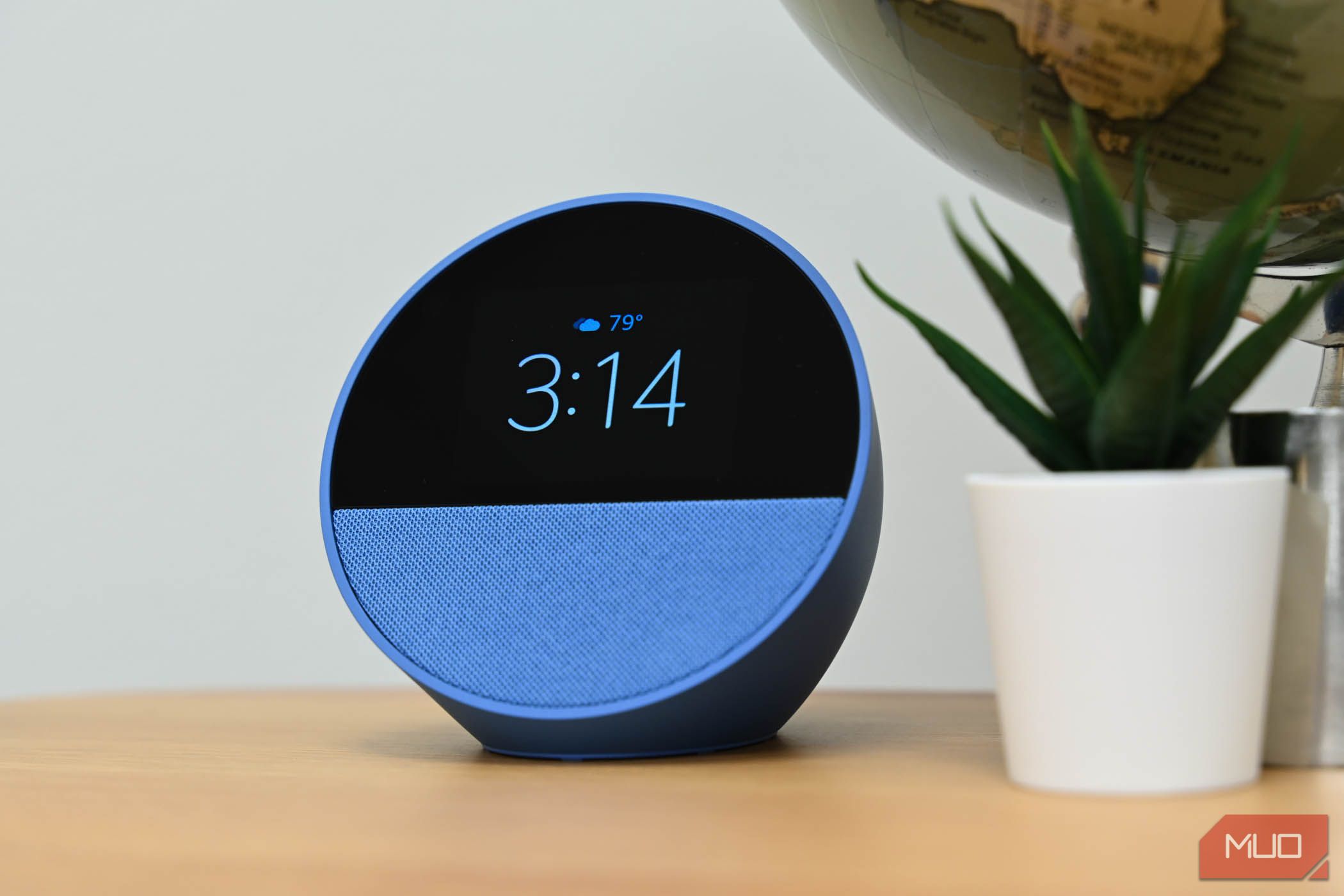

The incredible convenience of Alexa comes with a trade-off—the constant presence of a listening device inside our homes. If you use an Amazon Alexa-powered device, it’s time to take a few steps to safeguard your privacy.
1
Delete Your Voice Recordings
One of the most significant privacy concerns surrounding Alexa is the storage of voice recordings. Changes to Amazon’s Alexa+ platform mean that Amazon now stores your voice interactions to improve Alexa’s accuracy and personalize your experience. Amazon removed the local voice processing opt-out, which means a record of your conversations with Alexa is kept on Amazon’s servers.
But to regain control over your voice data, you can delete these recordings.
- Open the Alexa app on your smartphone.
- Tap More in the bottom right corner.
- Tap Alexa Privacy and then choose Review Voice History.
- Here, you can review individual recordings and delete them one by one or delete all recordings for a specific date range.
- Again, on the Alexa Privacy page, tap Manage Your Alexa Data.
- Here, you can set a period that you want to retain the recordings for or choose Don’t save recordings. Tap Confirm.
You can do the same on the Amazon website as well. On Amazon.com (or your country’s localized portal), navigate to Accounts & Lists and then Content Library. Select Privacy Settings and then Alexa Privacy. Follow the same steps as in the Alexa app to review and delete recordings.
Deleting voice recordings regularly is a crucial step in maintaining your privacy. While it might not erase all traces of your interactions, it significantly reduces the amount of personal data stored on Amazon’s servers.
That said, it is important to note that deleting the recordings may impact Alexa’s ability to personalize your experience. You can try to find a sweet spot between retaining the voice recordings for a few months to benefit from the personalization yet not have your data saved perpetually on Amazon’s servers.
2
Manage Skill Permissions

Alexa’s capabilities are expanded through “skills,” essentially voice-activated apps for Amazon Echo devices. There are more than 100,000 Alexa skills available—from controlling smart home devices to task management to even telling jokes.
While Amazon develops a number of skills, the vast majority are made by third-party developers. To function correctly, these skills often require access to certain permissions, such as your location, contacts, or calendar. However, granting excessive permissions can expose sensitive information.
Therefore, you should be selective about installing skills. Before installing a new Alexa skill, carefully review the permissions it requests. Only install skills from reputable developers and avoid those requiring unnecessary or excessive permissions. Often, a skill’s reviews can give you a good idea of how to filter dodgy skills.
And, of course, regularly audit the skills installed on your Echo and other Amazon Alexa-enabled devices. Remove those you no longer use or those that request unnecessary permissions, reducing the potential for privacy breaches.
- Open the Alexa app on your smartphone.
- Tap More in the bottom right corner.
- Tap Alexa Privacy, and then tap Manage skill permissions and ad preferences.
- You can check out the permissions that have been requested by individual skills, and then toggle the permissions on or off.
Of course, you can also do this via the Amazon website by navigating to the Alexa Privacy section.
3
Mute the Microphone When Not in Use

Amazon Echo devices are designed to be always listening for the wake word—Alexa, or one of the other options that you can change Alexa’s wake word into. While this enables hands-free convenience, it also means that the device is constantly monitoring your surroundings.
To address this concern, you can mute the microphone when you’re not actively using Alexa. Locate the mute button on your Echo device and press the button to mute the microphone. A red indicator light will typically illuminate to indicate that the microphone is muted. Remember to unmute the microphone when you want to use Alexa again.
When the microphone is muted, Alexa will not listen for the wake word or record any audio. It provides a physical safeguard against unintended recordings and ensures that Alexa only listens when you explicitly want it to.
While this simple step can significantly enhance your privacy, it also kills the core highlight of being an always-on virtual assistant. If you prefer the hands-on convenience, consider muting the microphone when discussing a sensitive topic or private matter.
4
Disable “Help Improve Alexa”
Amazon uses your voice recordings and interactions to improve Alexa’s accuracy and develop new features. By default, this data is shared with Amazon and may even go through human review to improve the services.
If you are uncomfortable with this, you can opt out of sharing your voice recordings with Amazon.
- Open the Alexa app on your smartphone.
- Tap More in the bottom right corner.
- Tap Alexa Privacy and then choose Manage Your Alexa Data option.
- In the Help Improve Alexa section, Turn off the Use of voice recordings toggle button.
- In the prompt that comes up, tap Turn off to confirm.
Disabling this feature prevents Amazon from using your voice recordings to train its voice recognition and cognitive capabilities, reducing the amount of personal data shared with the company. Amazon claims that if this feature is turned off, voice recognition and new features may not work well for you—but I don’t think that’s really the case.
5
Limit Personalized Advertising

Amazon uses your interactions with Alexa and other Amazon services to personalize advertising. You might see targeted ads based on your voice commands, purchases, and browsing history.
If you don’t care for personalized advertising, you can limit it—and there are two ways to go about it. On the Amazon website, navigate to Accounts & Lists and head to the Account (or equivalent) section. Head to the Advertising preferences page. Or you can alternatively head to amazon.com/adprefs directly.
Choose the Do not show me interest-based ads provided by Amazon option and hit Submit. Additionally, in the Delete your personal information from our ad systems section, you can also choose to Delete ad data to delete your personal information from Amazon’s ad systems.
Do note that this the “Advertising preferences” experience is not consistent across locales. The screenshot above shows the experience with my Amazon US account, but my Amazon India account has a different UI, and the option to delete ad data is missing. The steps above are, therefore, indicative only.
Mind you, even after turning off this option, you may still see personalised product recommendations on Amazon unless you’ve also adjusted Your Recommendations and Your Browsing History. Moreover, even if Amazon has expunged all your personal data, you will still see ads provided—they just will not be based on your interests.
But that’s not all. There’s an additional step for ads delivered by Alexa.
- Open the Alexa app on your smartphone.
- Tap More in the bottom right corner.
- Tap Alexa Privacy and then choose Manage Your Alexa Data.
- Turn the Receive interest-based ads delivered by Amazon on Alexa toggle off.
Again, this will not stop all advertisements, but it will reduce the number of targeted ads presented to you based on your Alexa interactions.

Related
4 Reasons Amazon’s Alexa+ Is a Privacy Nightmare
Your Amazon Alexa privacy is about to undergo big changes, and you have no choice but to comply or switch.
While Amazon Echo devices powered by Alexa offer undeniable convenience, it’s essential to be mindful of the privacy implications. By implementing some guardrails proactively, you can balance Alexa’s functionalities and safeguarding your privacy.