

Key Takeaways
- You can create collages using Canva on the web, your computer, your smartphone, or your tablet.
- You have the option to create collages from scratch or use pre-designed templates in Canva.
- Saving your Canva photo collage is easy on all devices, with different steps for computers and mobile devices.
Do you want to know how to create a captivating collage on your desktop or smartphone? After following this Canva guide, you’ll have a ready-made collage for birthday cards, social media posts, and much more. We’ll also show you how to save your creations.
How to Create a Photo Collage Using Canva on Your Computer
The steps to create a photo collage in Canva on your computer are the same for both the desktop app and web browser versions. However, the process will differ depending on whether you want to create a collage from scratch or if you’d prefer to use a template. You’ll find the steps for both in the sections below.
Download: Canva for Windows | macOS (Free, in-app purchases available)
How to Create a Photo Collage From Scratch
First, let’s look at how to create a photo collage from scratch in Canva.
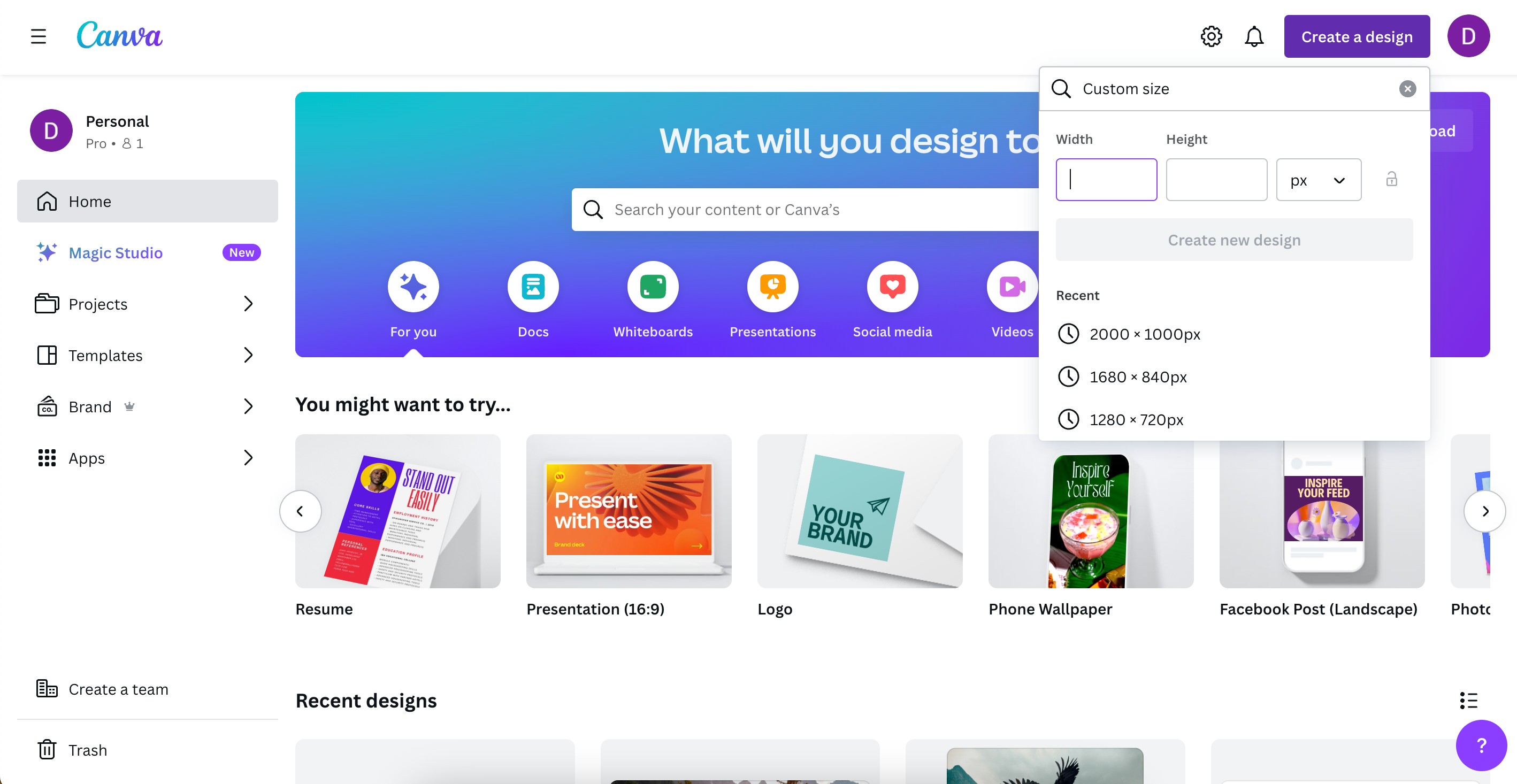
- Select Create a design in the top right-hand corner.
- Select Custom size at the bottom of the dropdown menu.
- Enter your preferred dimensions and hit Create new design.
- Click on Elements and scroll down to Grids. Select See all if you want to see the full list of options.
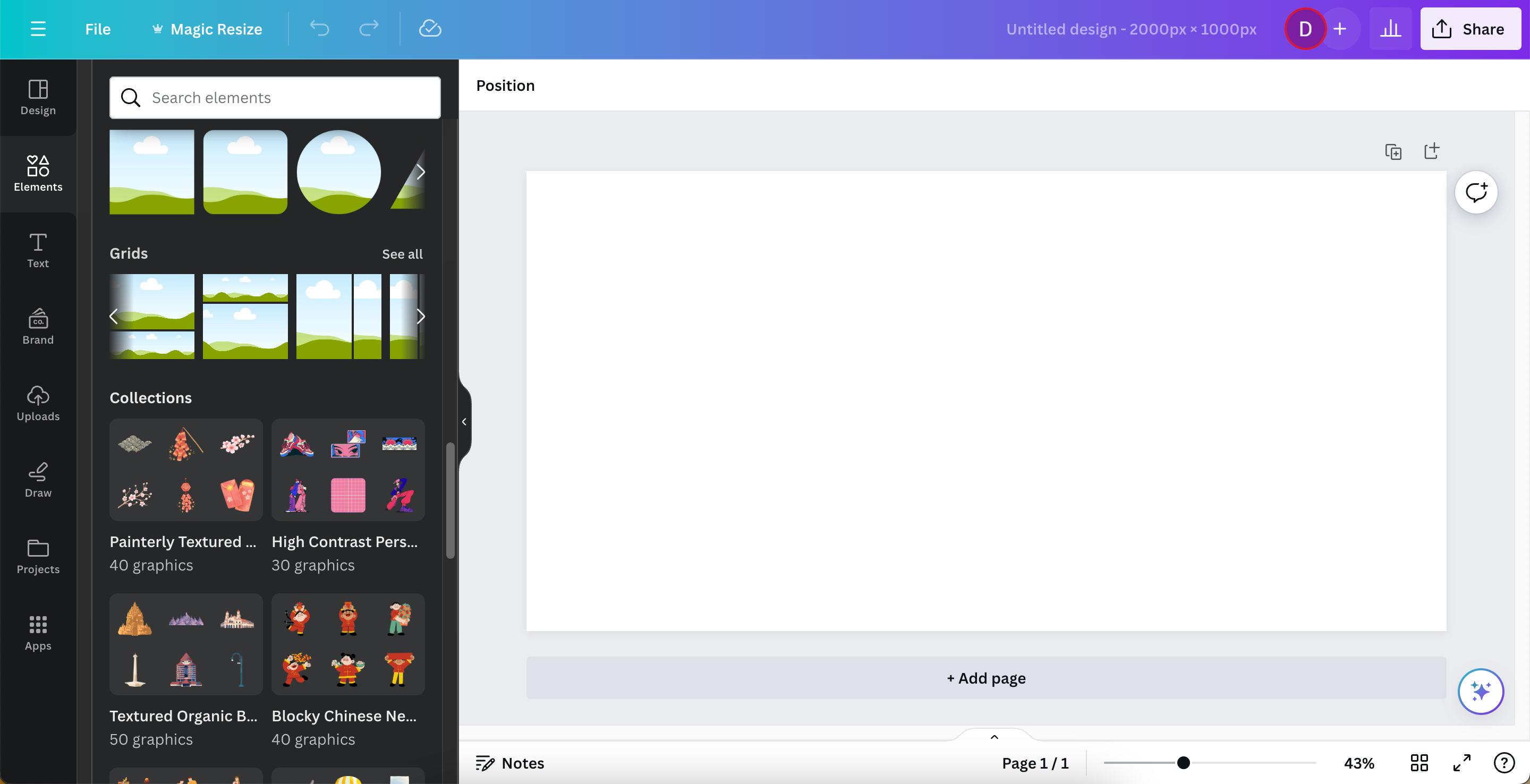
- Pick your preferred collage layout.
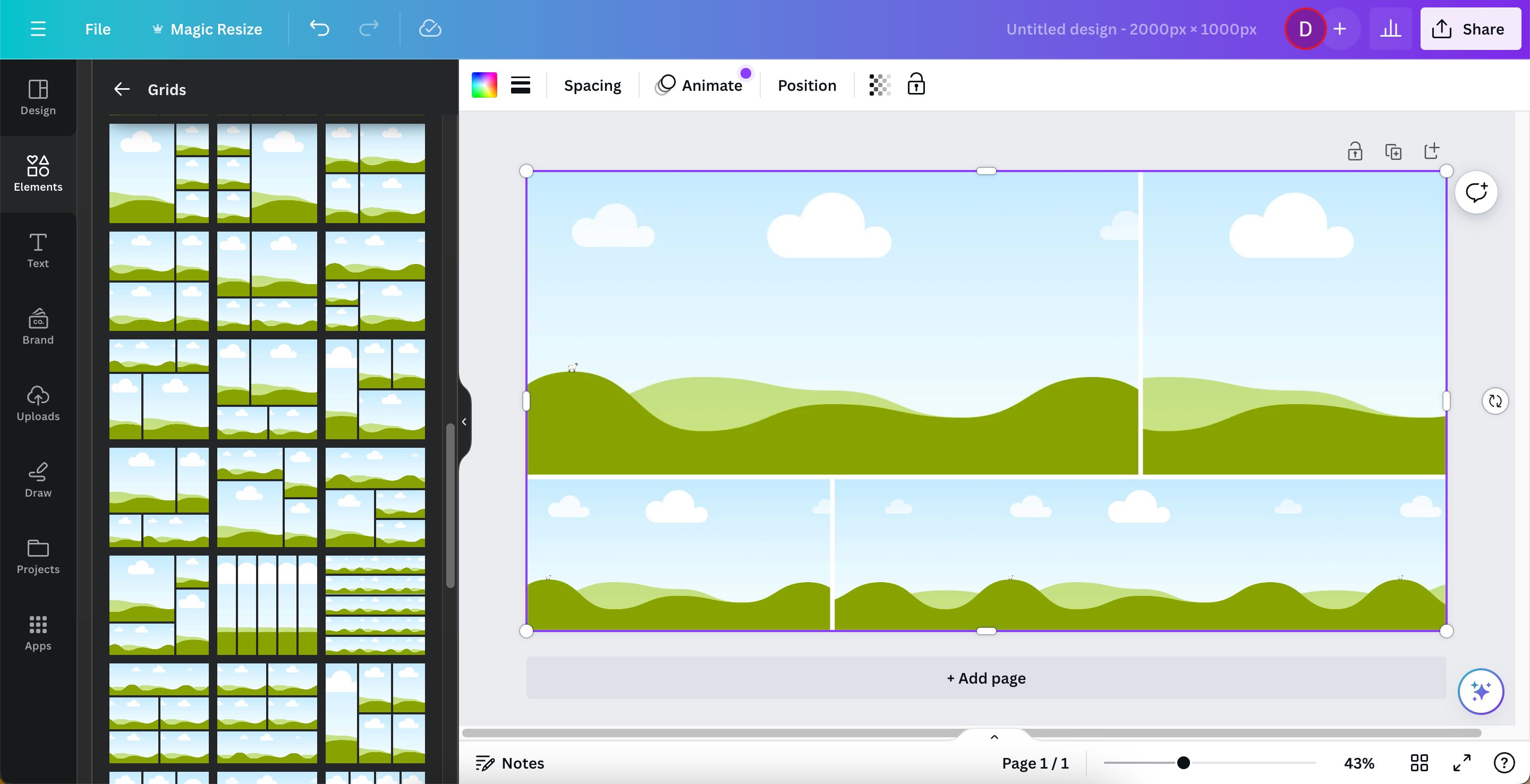
- Add your images to the grid by dragging and dropping them into the boxes. Either go to Uploads to add your own images or Elements > Photos to use images already in Canva.
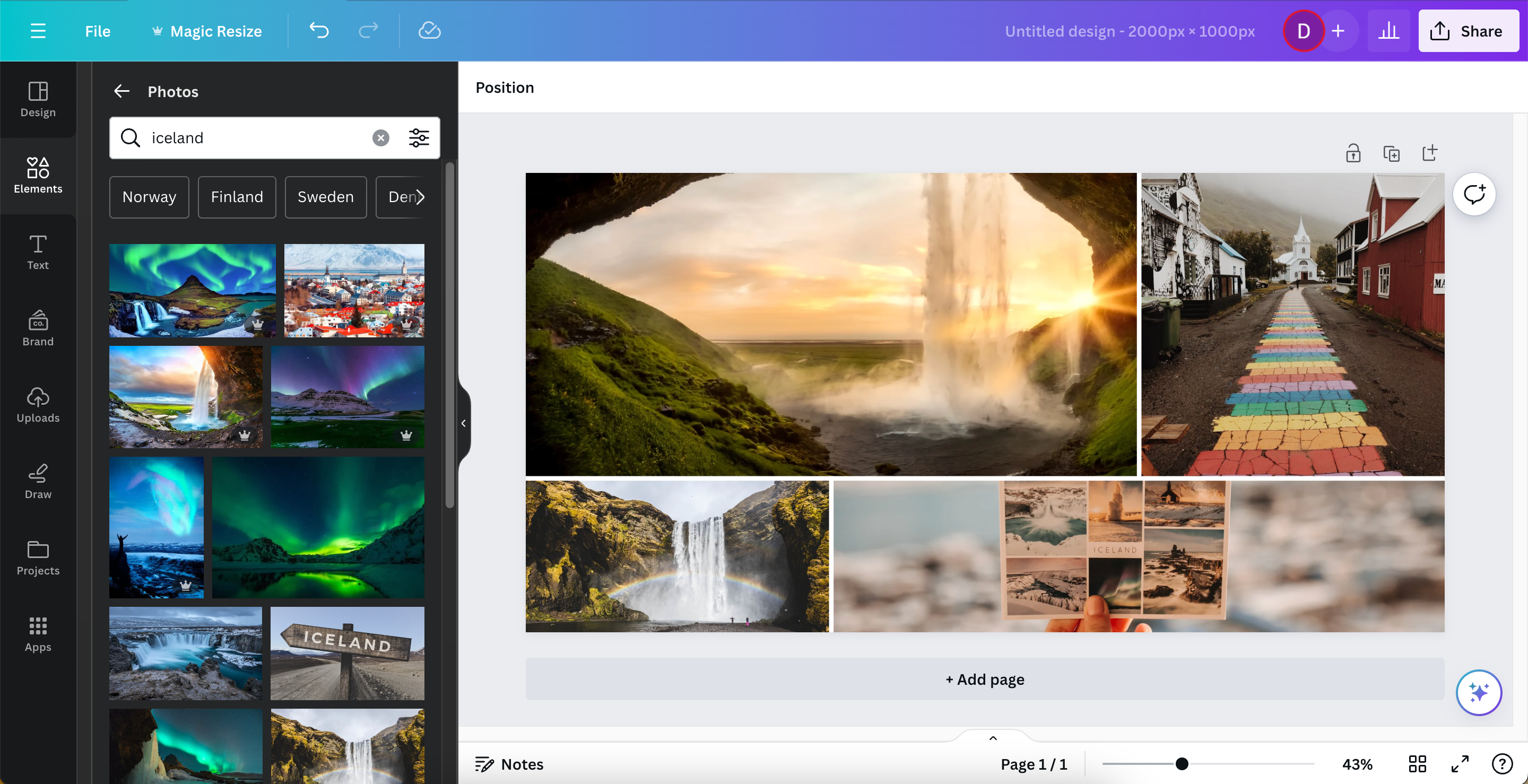
- You can further customize your collage by adding creative elements or text.


How to Create a Photo Collage With a Template
If you want to create a collage in Canva using a template instead, you have two options. The first is to pick a collage layout in portrait or landscape orientation. Alternatively, you can use a social media template if you’re posting on a social platform such as Instagram and need to resize your image.
Here are the steps to create a collage in Canva using a template:
- On the Canva homepage, search for collage or your social media platform of choice.
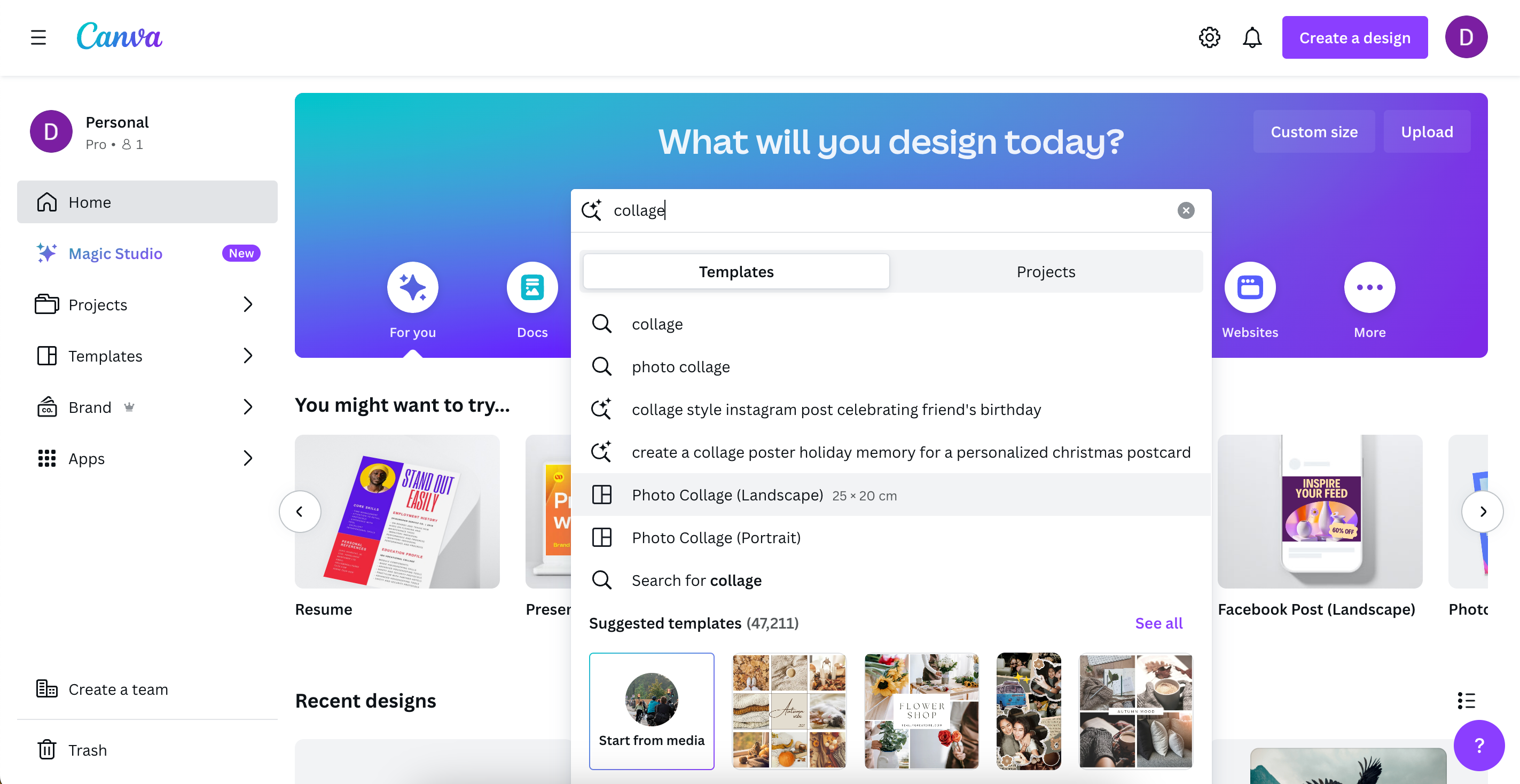
- Go to Suggested templates and click See all.
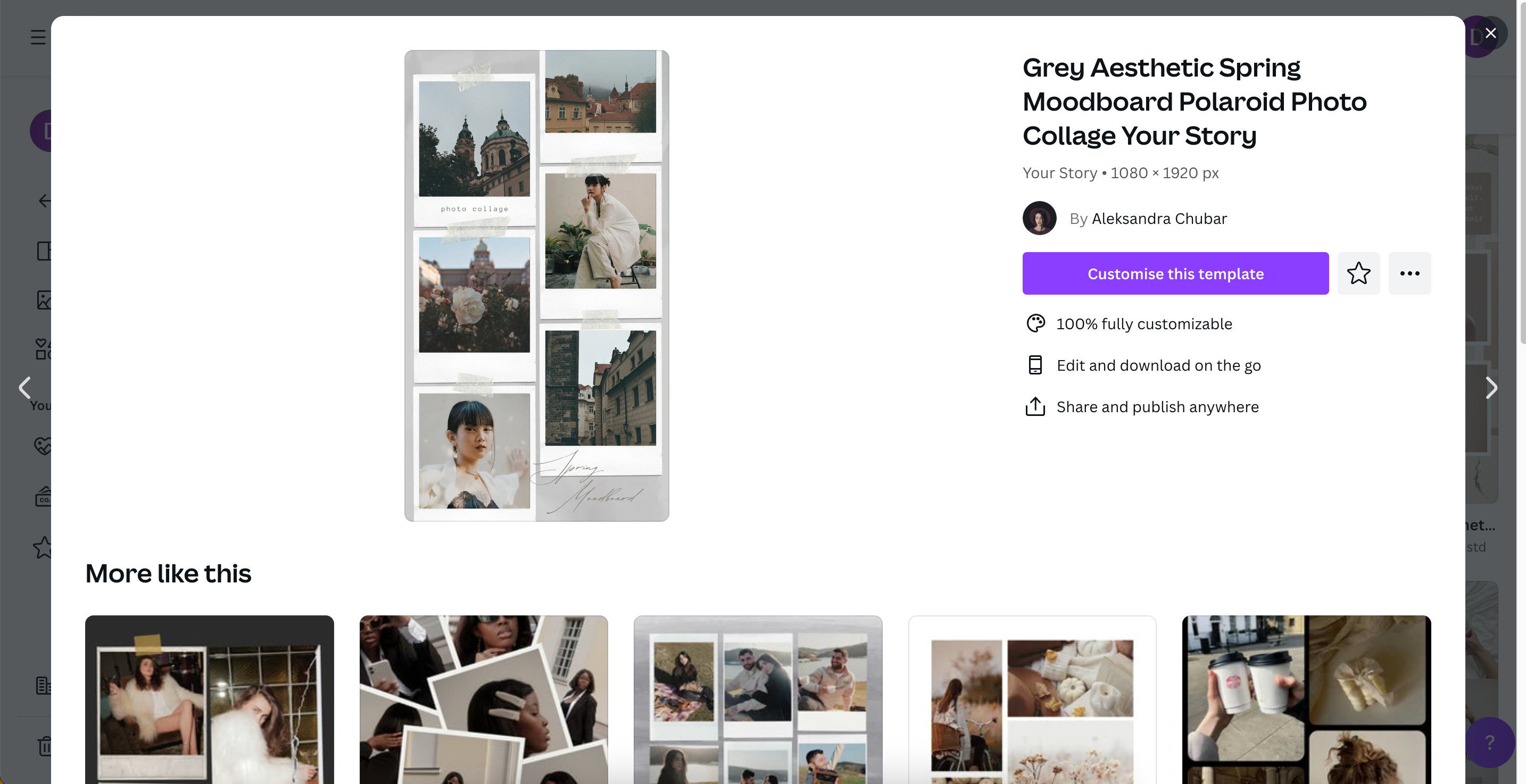
- Pick your preferred template. Note that the templates with a crown icon are paid options, but you can use everything else for free.
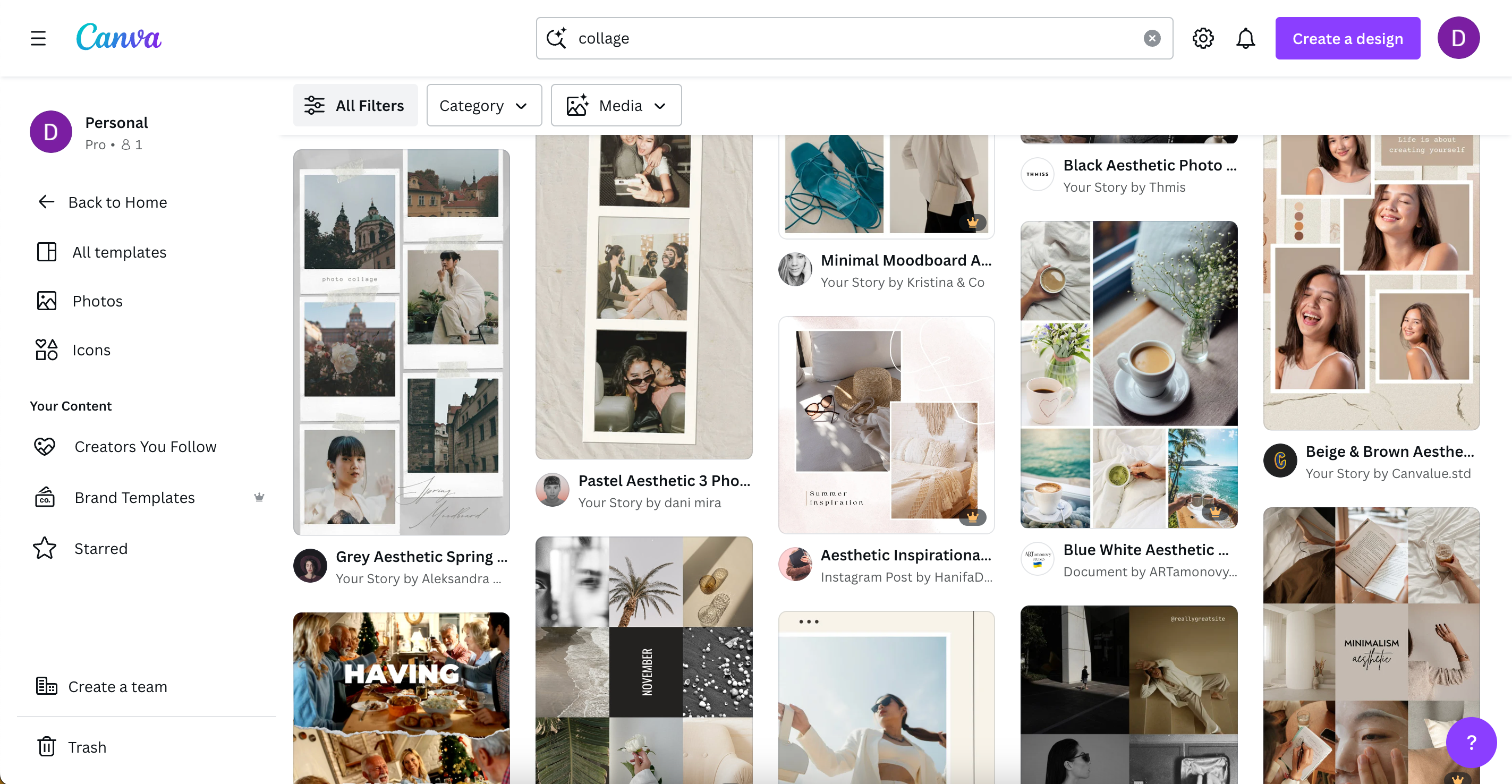
- Select Customize this template.
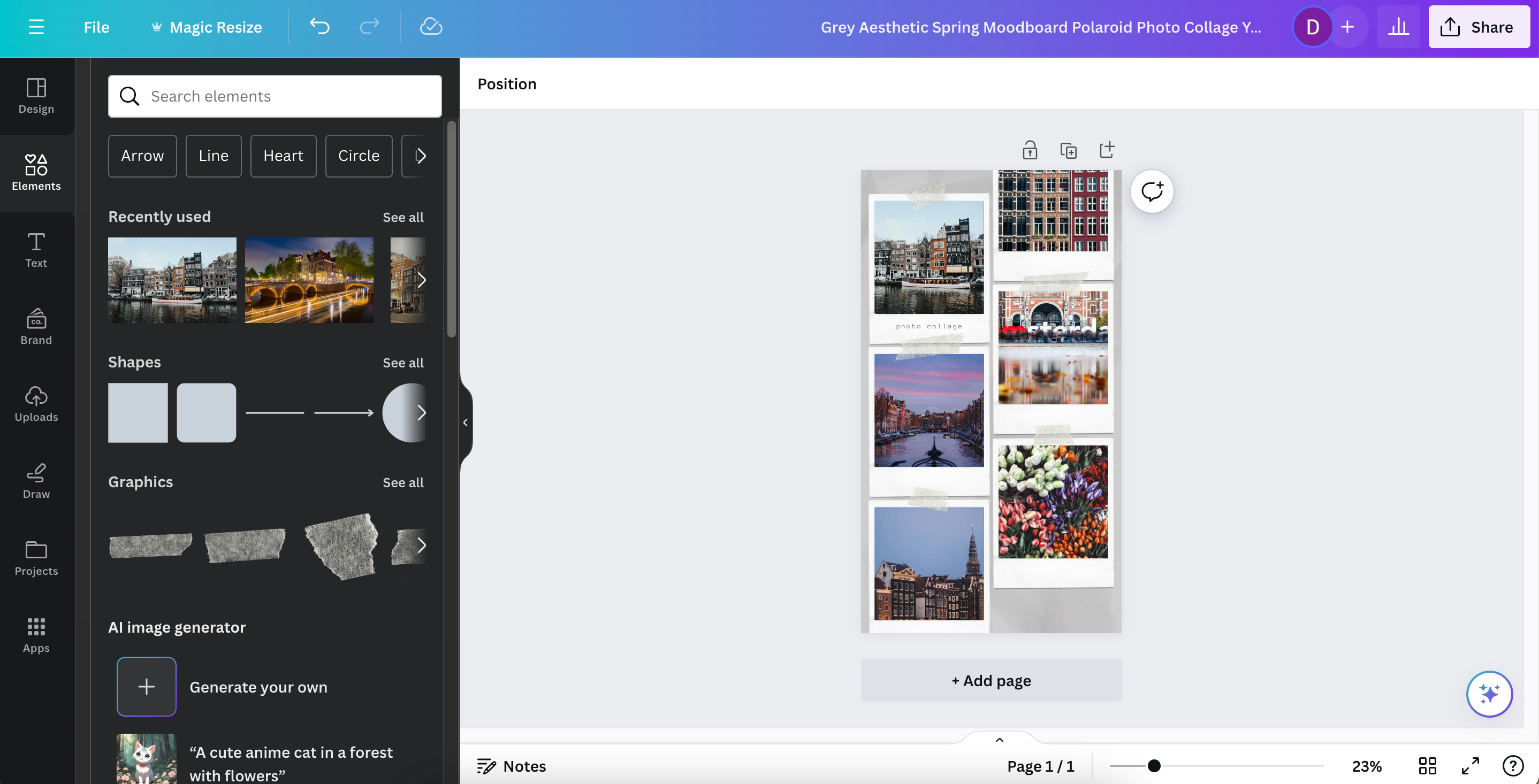
- Drag and drop your images onto the photos in the template: they will snap into place. Same as making a collage from scratch, you can upload your own photos or use pictures already in Canva.


Besides creating designs with other users’ templates, you can also create and publish your own templates on Canva.
How to Create a Photo Collage Using Canva on Your Smartphone or Tablet
You can create photo collages on the go using the Canva app on your smartphone or tablet. Like on a computer, you have the choice to build your designs from scratch or use a pre-existing template. Moreover, your settings will sync across devices so long as you’re signed in.
Download: Canva for iOS | Android (Free, in-app purchases available)
How to Create a Photo Collage From Scratch
Follow these steps to create a Canva collage from scratch after downloading the app on your smartphone or tablet.
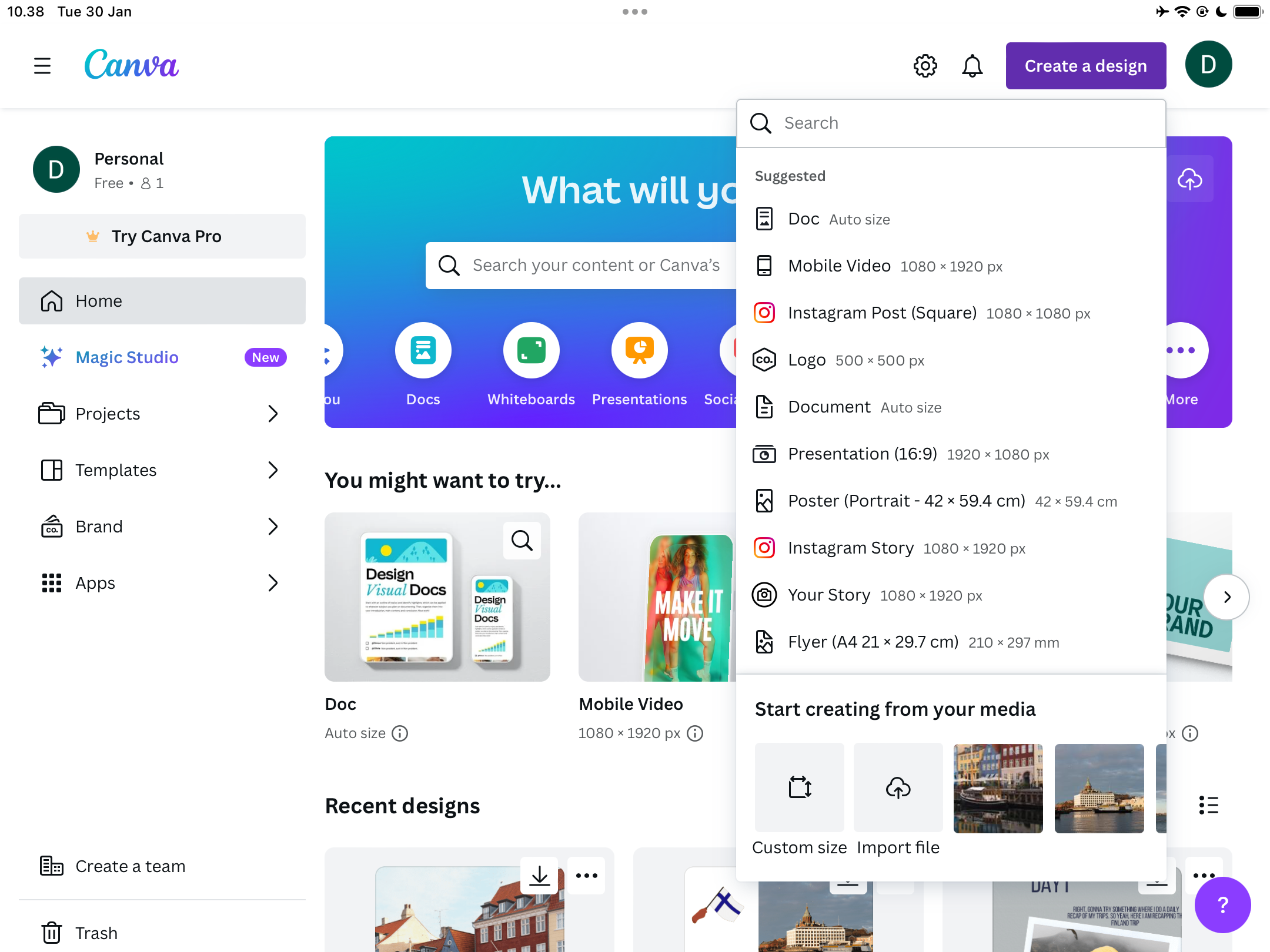
- Go to Create a design > Custom size.
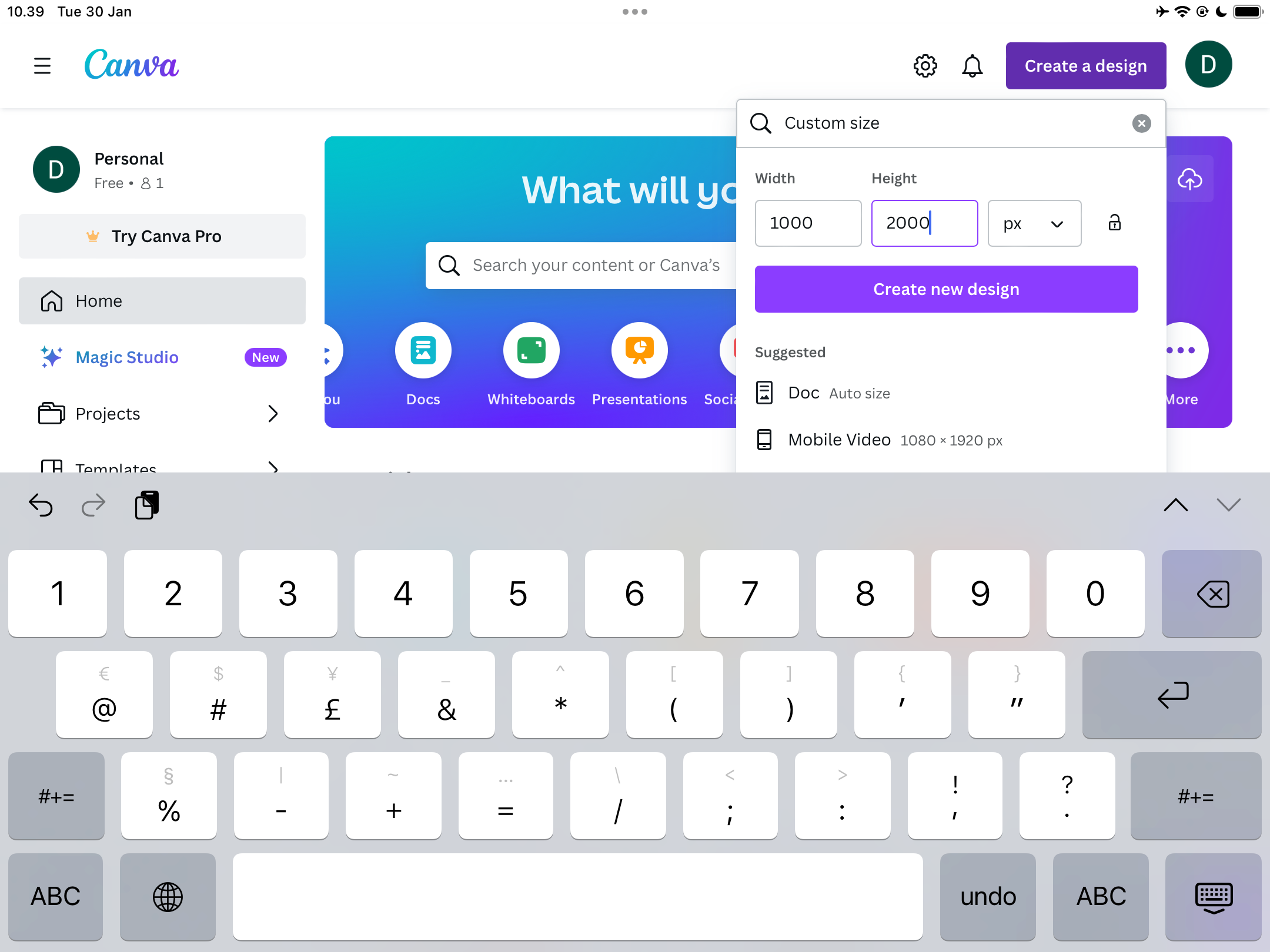
- Enter your preferred dimensions. If you’re not sure where to begin, use 2,000 x 1,000 px for landscape and 1,000 x 2,000 px for portrait.
- Tap Create new design.
- Navigate to Elements and select your collage design in Grids.
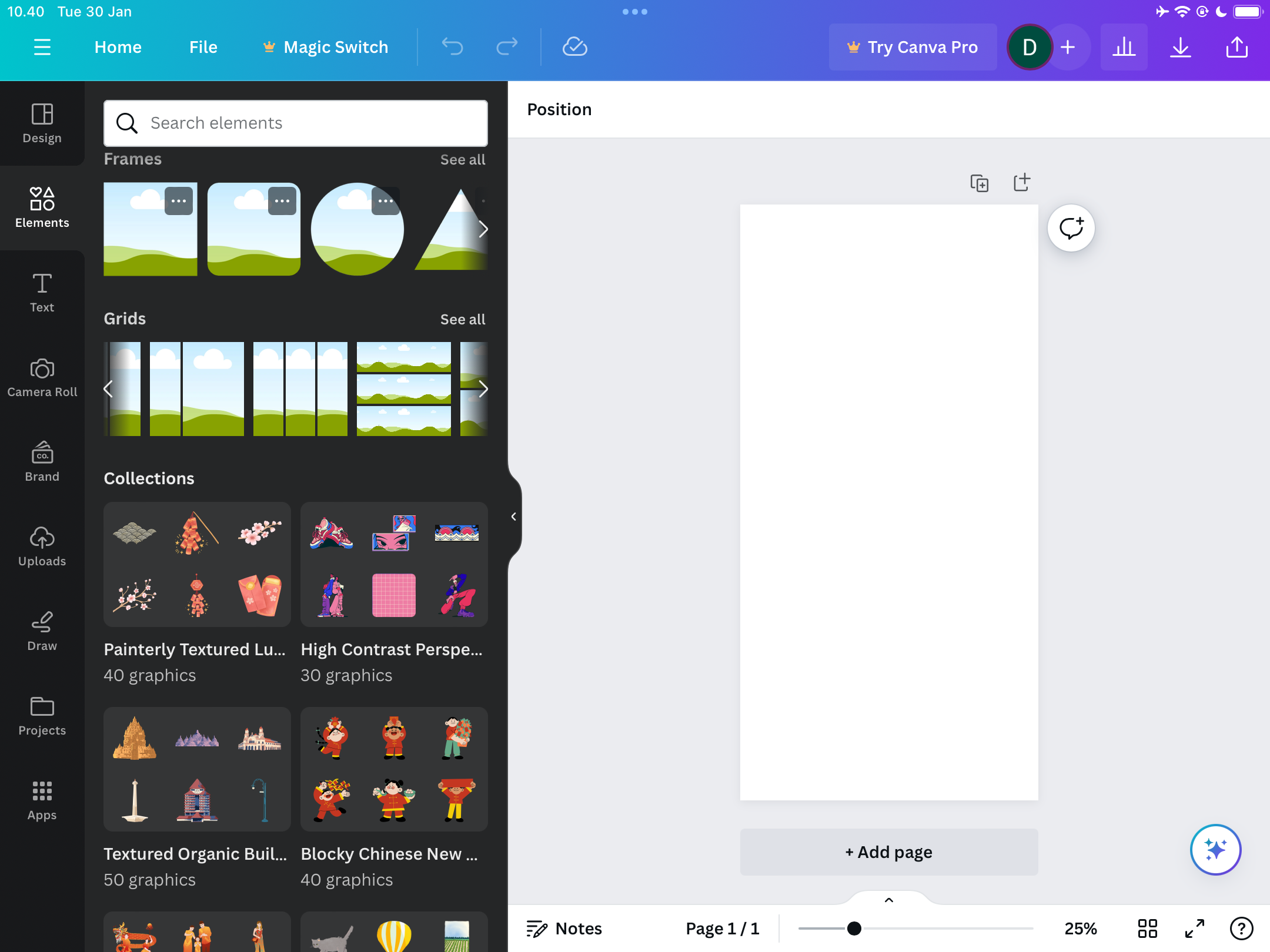
- Add your images to the grid. You’ll first need to tap to add them to your canvas, then drag and drop them into the part of the grid in which you want them to appear.
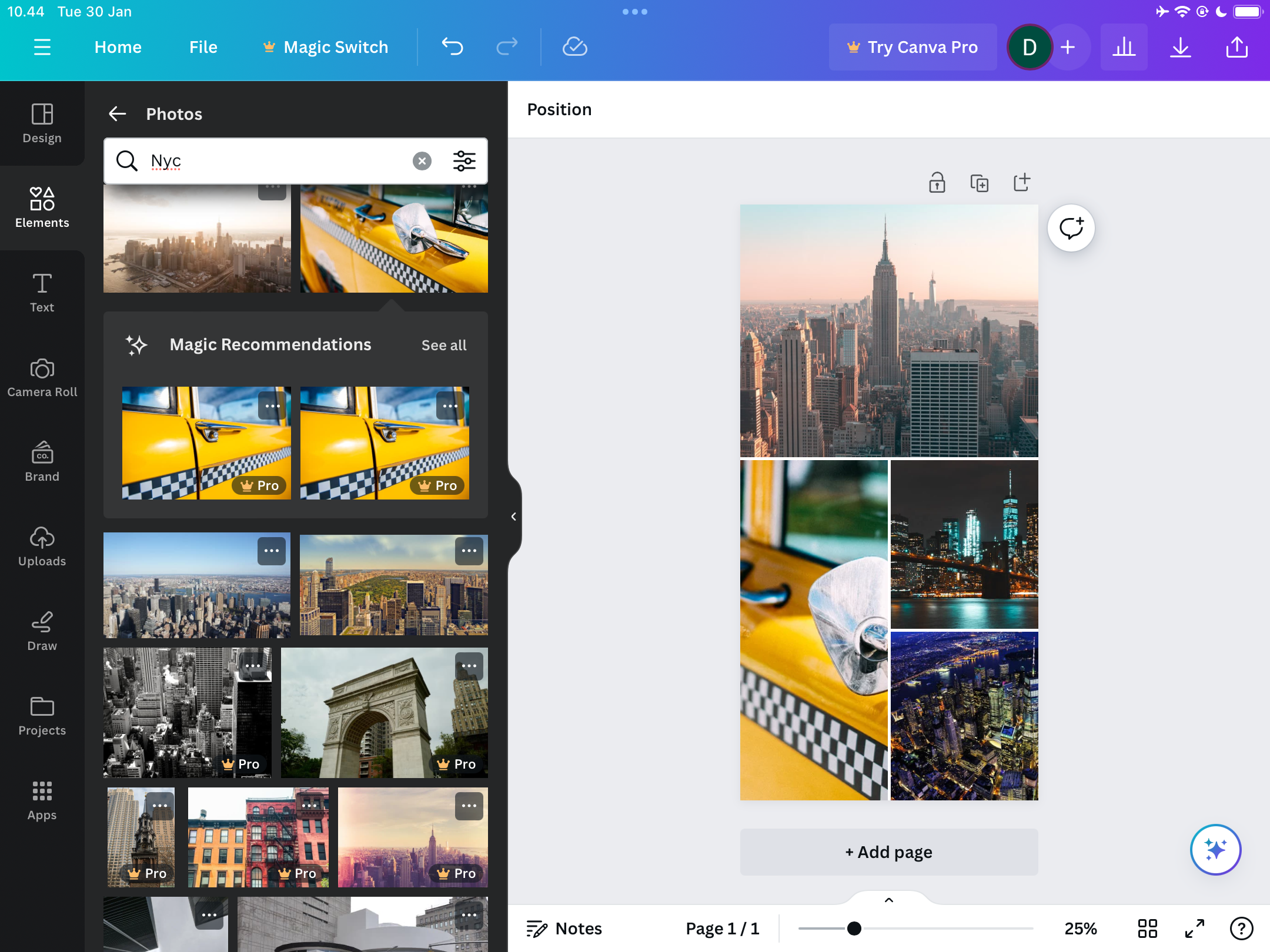
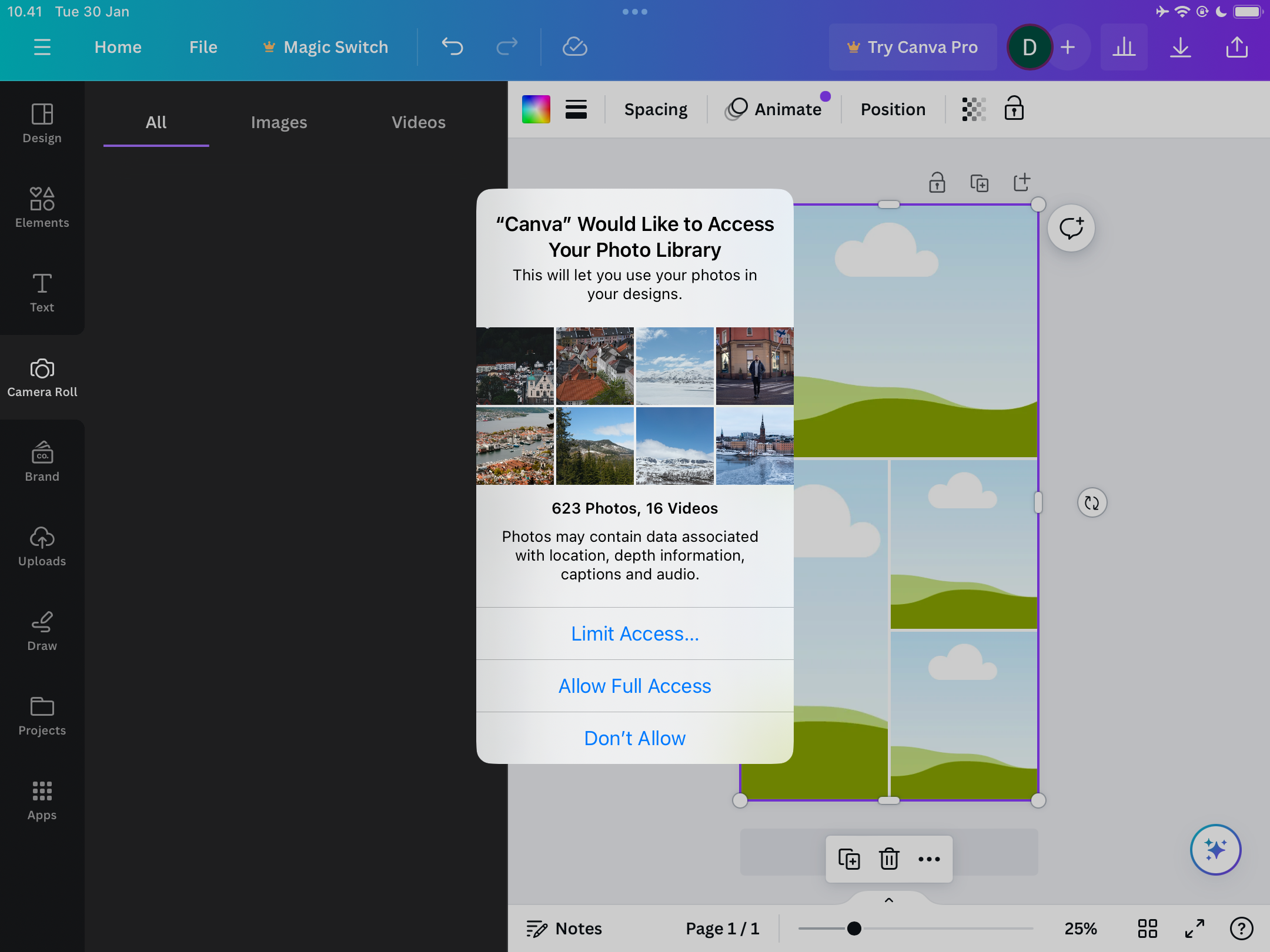
- Unlike on your computer, you also have the option to select pictures directly from your Camera Roll. If you do that, you’ll need to allow access when the pop-up window appears.


If you want to add more elements to your collage, you can use layers in your Canva designs to gain more creative control.
How to Create a Photo Collage With a Template
If you would rather create your Canva collage using a pre-existing template from your smartphone or tablet, follow these steps:
- Type the kind of template you want into the search bar on the homepage. Like on your computer, you can decide if you want to use a specific collage template or something with the dimensions you need for social media.
- Select See all next to Suggested templates.
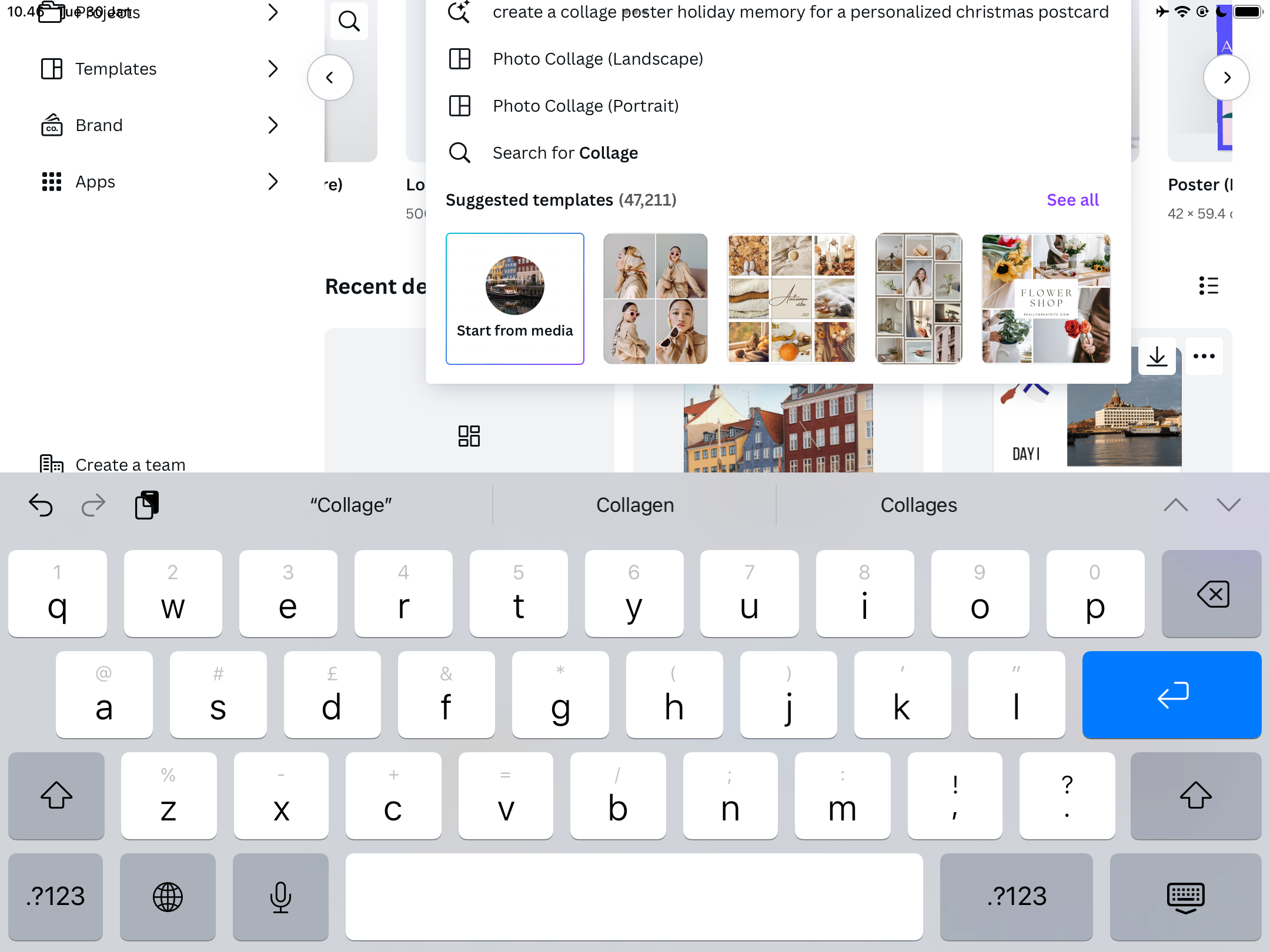
- Choose the template you want to customize.
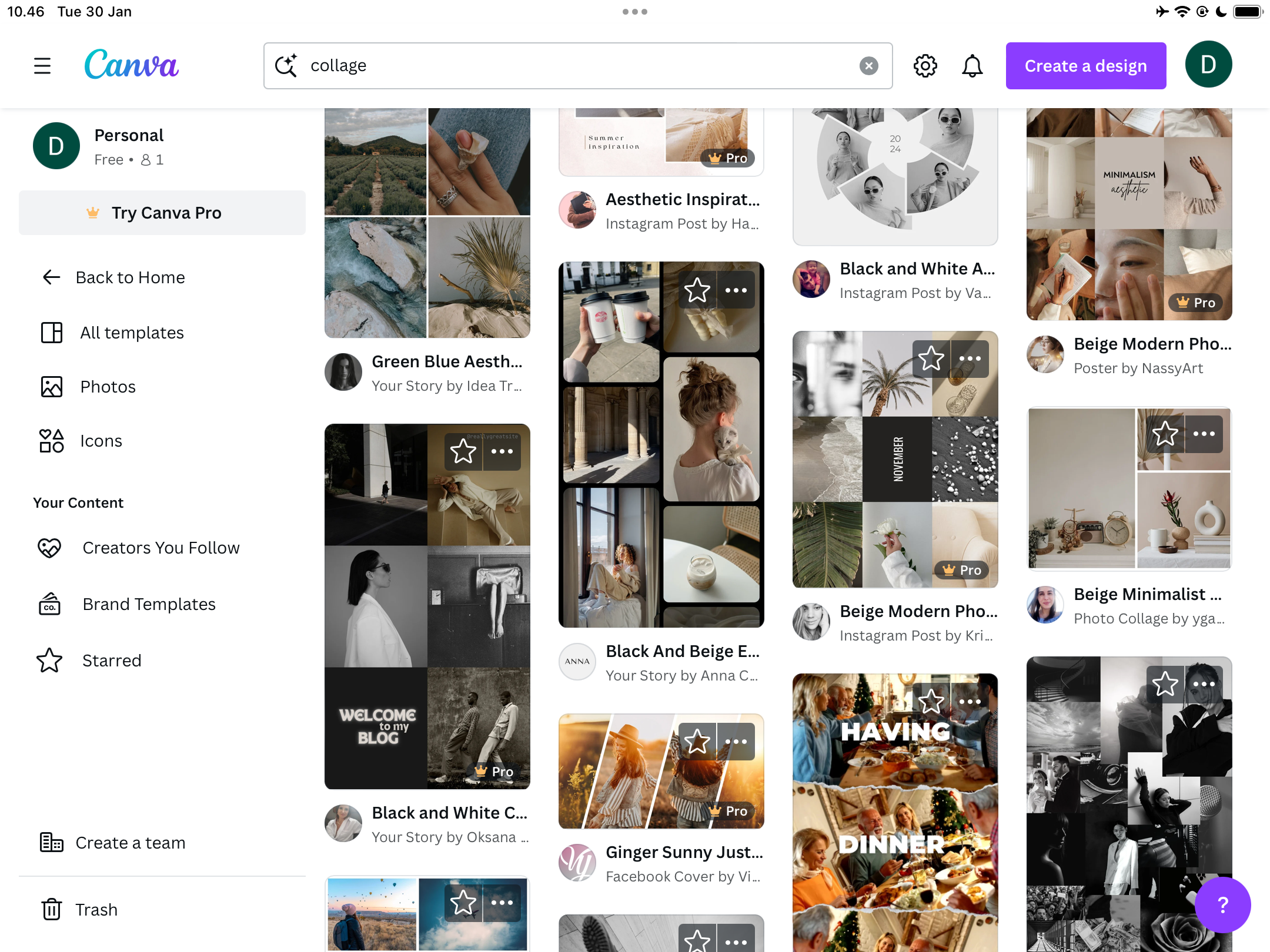
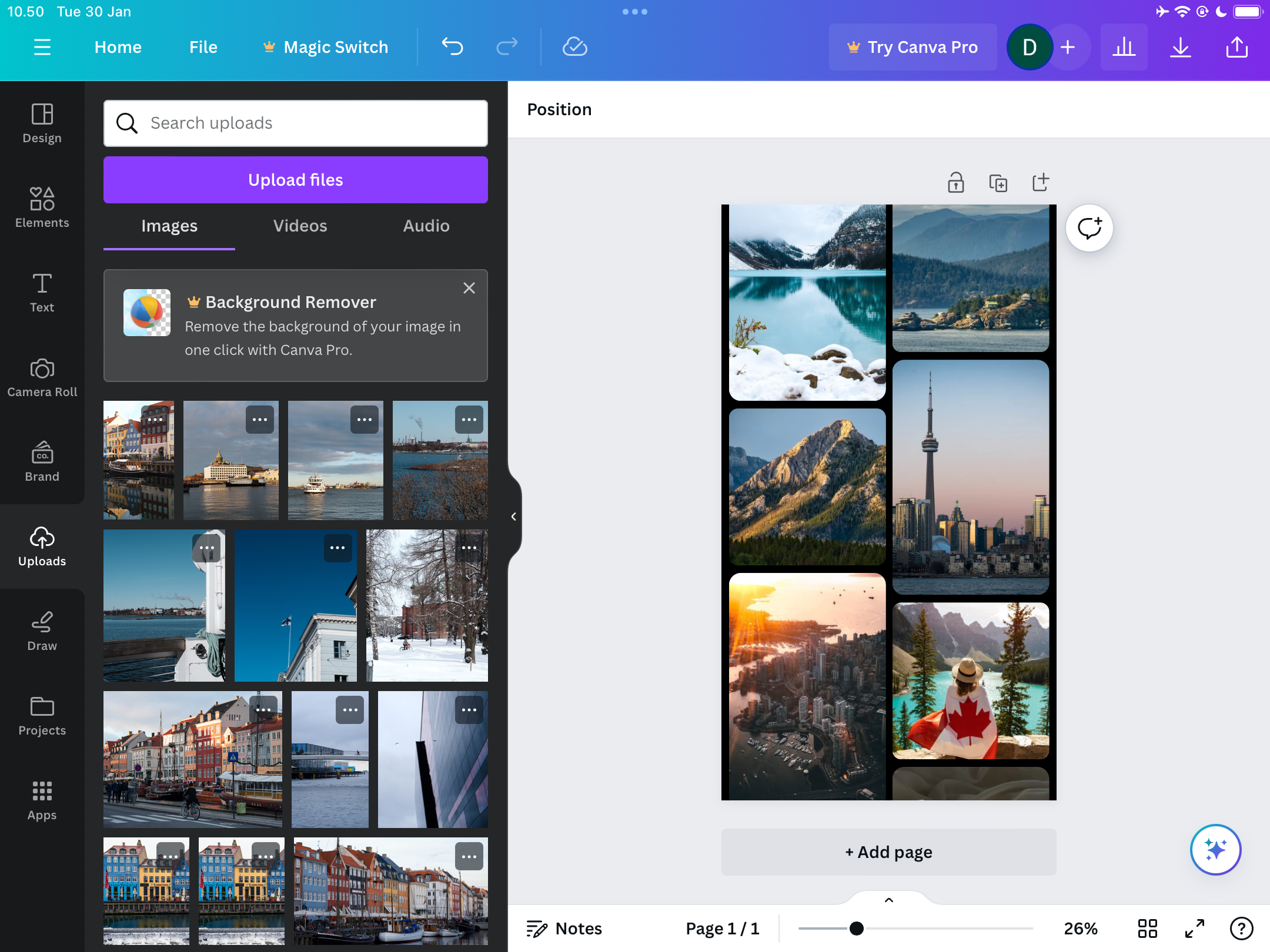
- Add the images you want to use into the template. Like when creating a collage from scratch, you can add directly from your Camera Roll, upload from elsewhere, or use images already in Canva.


How to Save Your Canva Collage
Once you’ve finished editing your collages in Canva, you’re ready to save your creations to your computer or smartphone. The process is slightly different depending on the device that you use, so we’ll break down each method.
How to Save Your Canva Collage on Your Computer
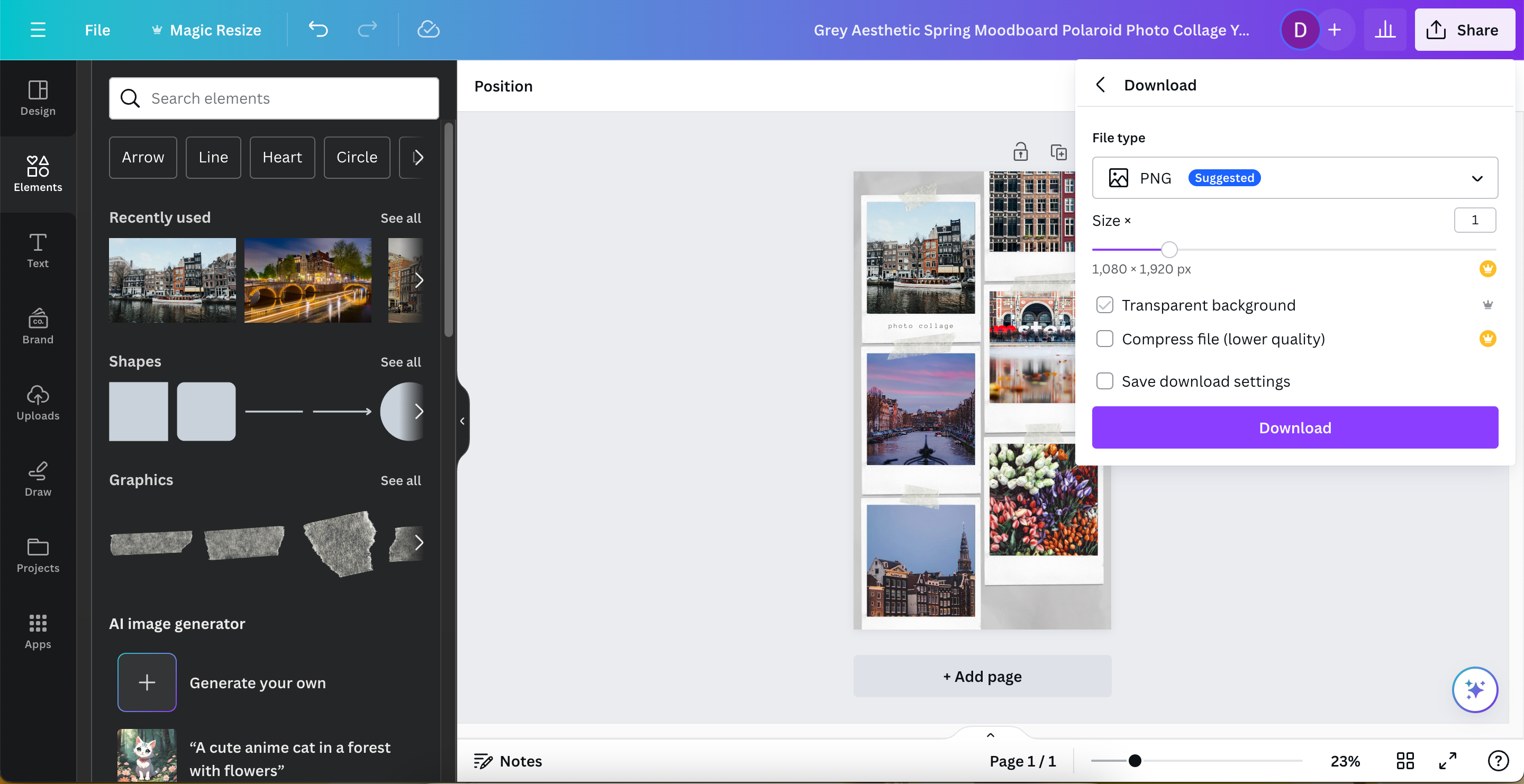
To save your collages via the Canva web or desktop app, follow these steps:
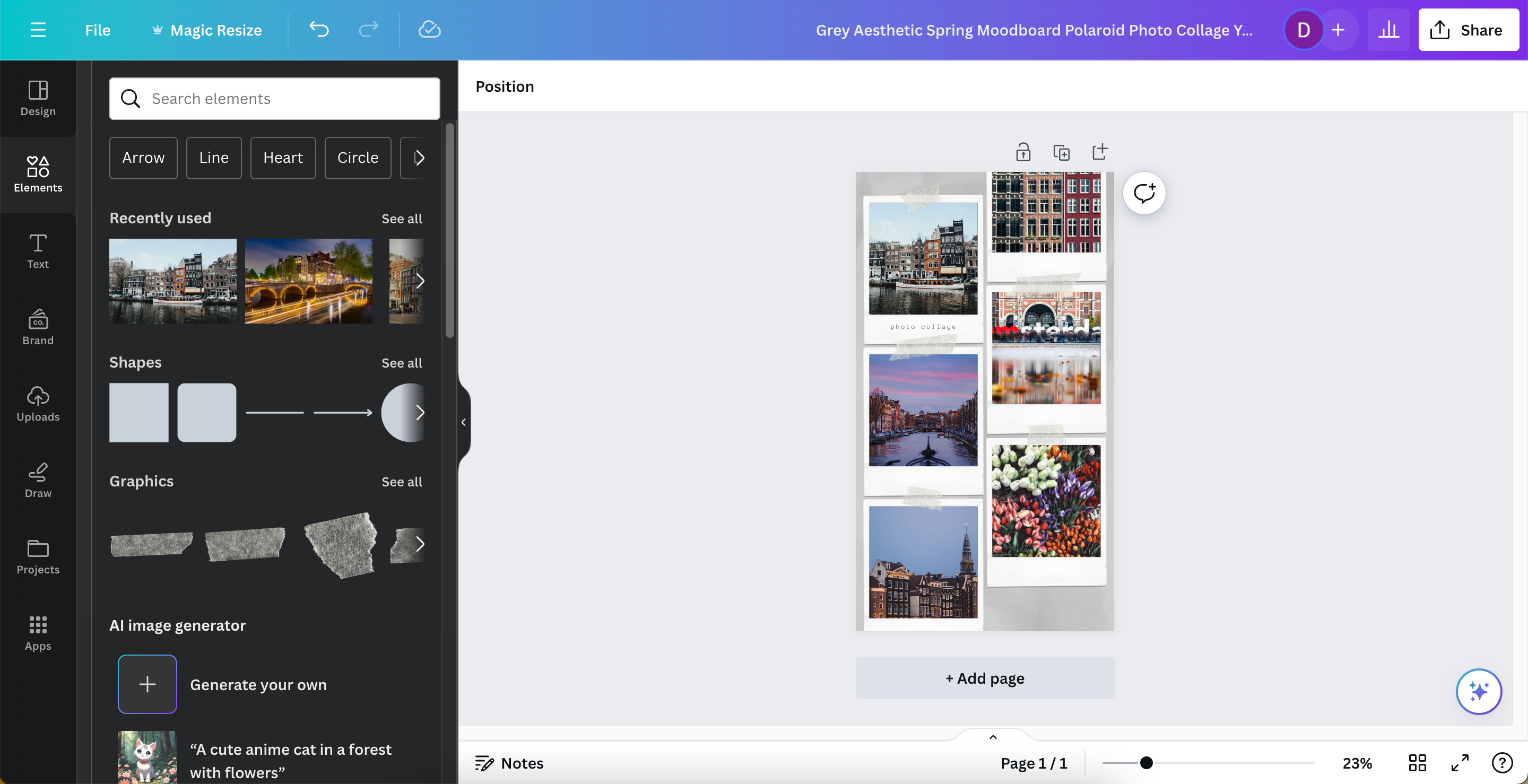
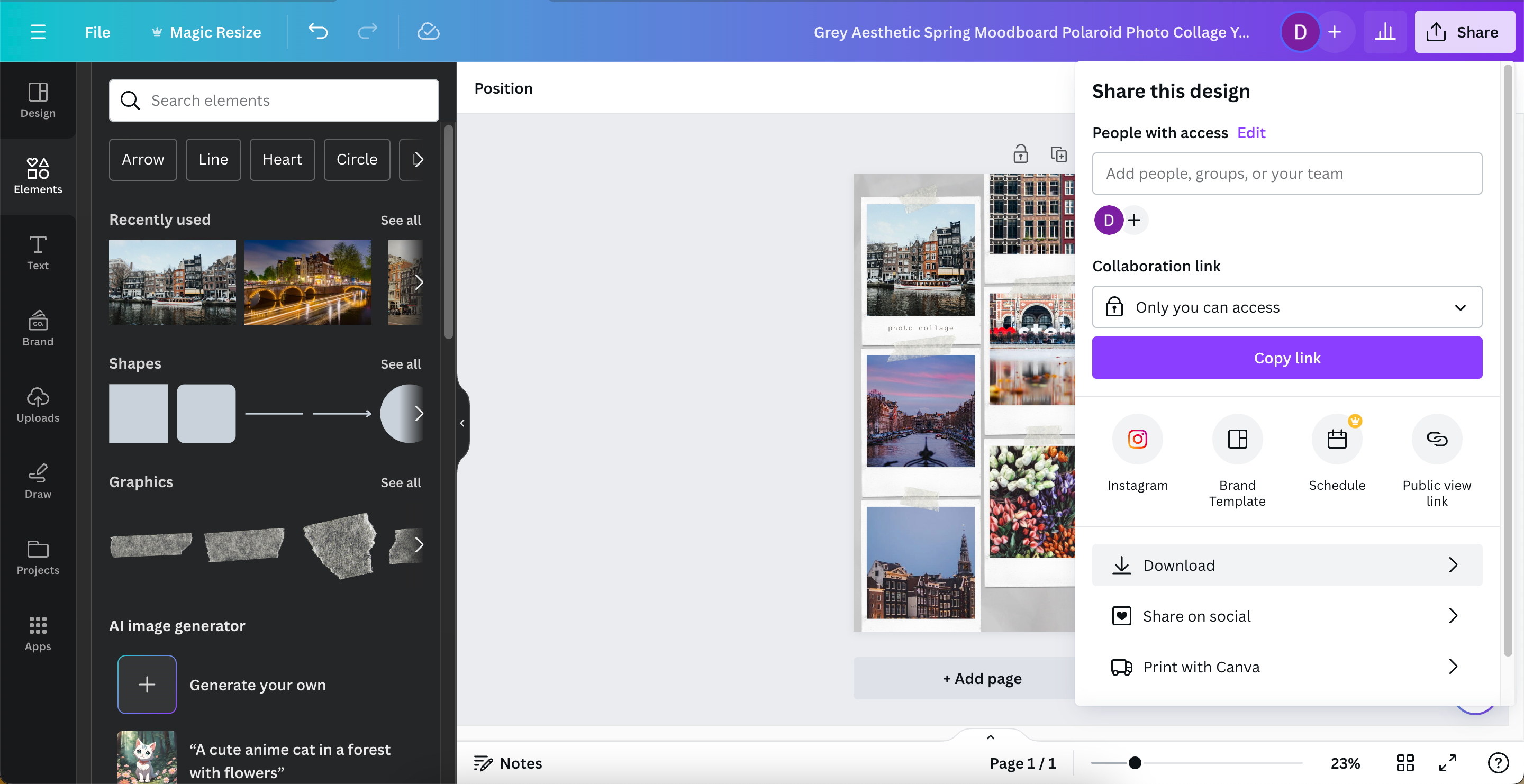
- Select Share in the top right-hand corner.
- Hit Download.
- Customize your download settings. You can save in PNG, JPEG, and other formats—but PNG is generally the best choice for photo collages. It’s lossless, and Canva PNGs normally don’t consume significant space.
- When you’re happy with everything, hit the Download button.


How to Save Your Canva Collage on Your Smartphone or Tablet
When you save the photo collages you’ve created in Canva on a smartphone or tablet, you won’t see the Share button, but some arrow icons instead.
To quickly save your collage in Canva to your smartphone or tablet without adjusting the settings:
- Tap the icon with an downward-facing arrow in the top right-hand corner.
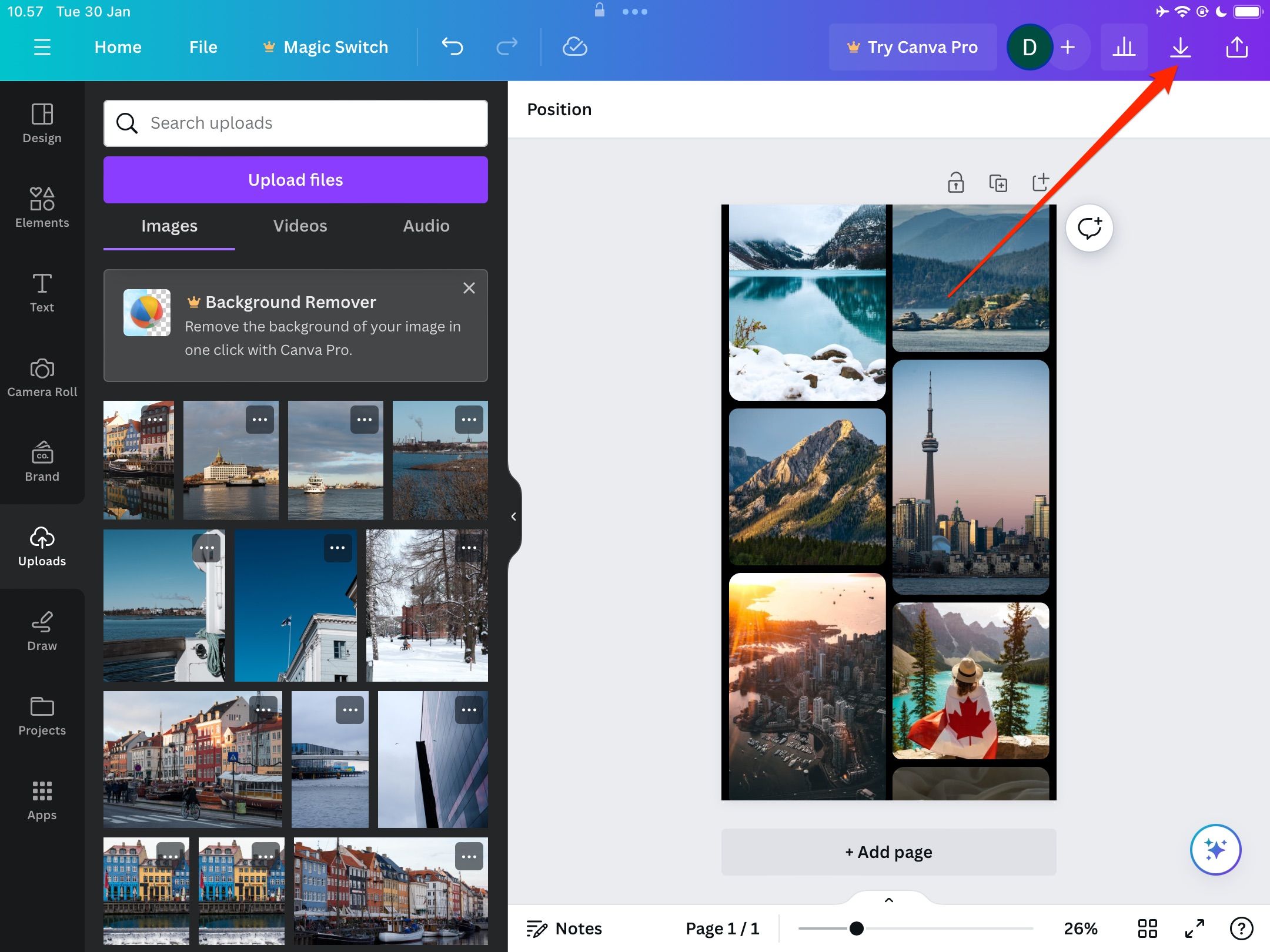
- When the pop-up window appears, select Save Image. Alternatively, you can choose to send your design to someone.
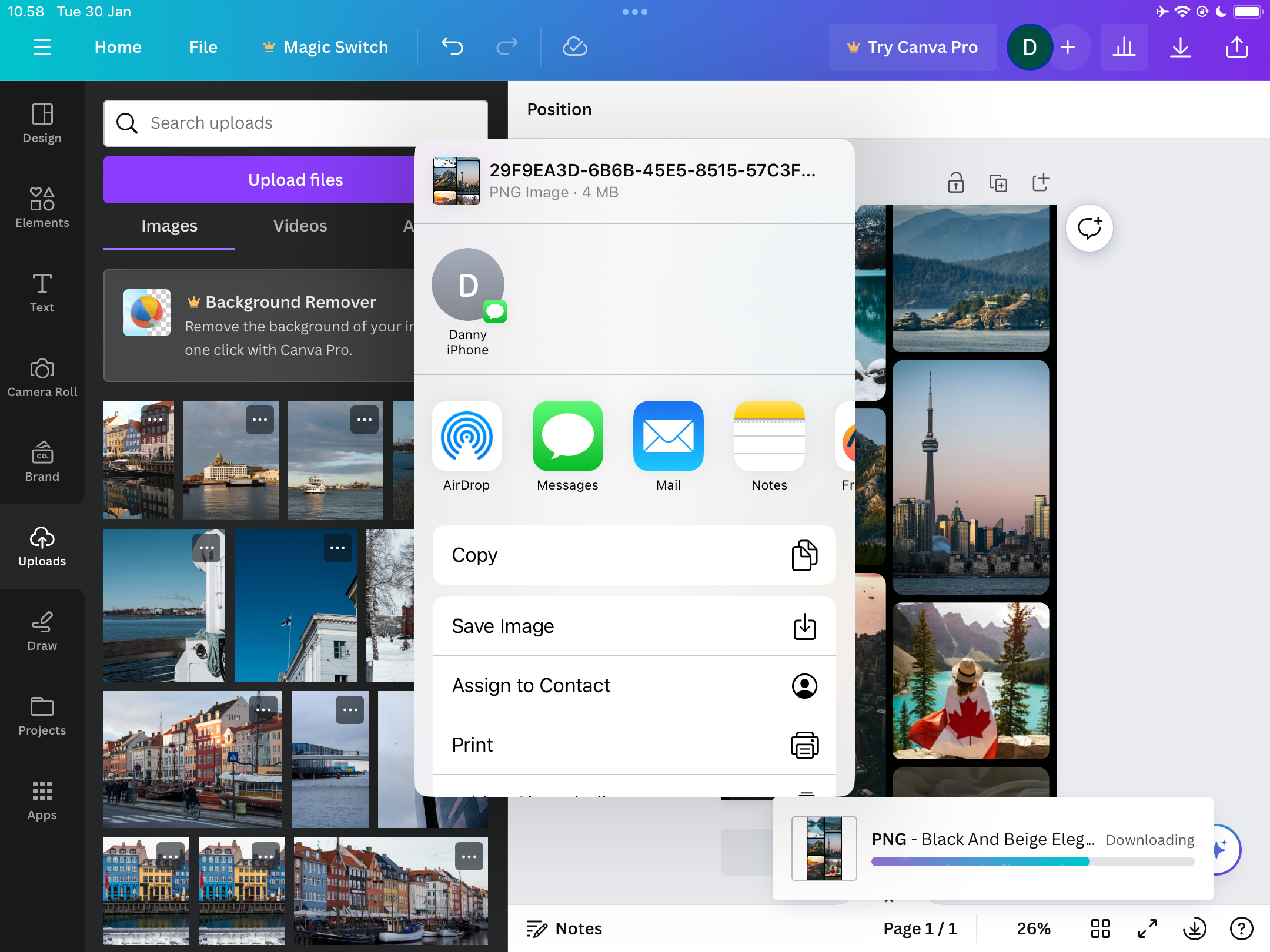


To customize your save options, follow these steps instead:
- Tap the upward-facing arrow in the top right-hand corner.
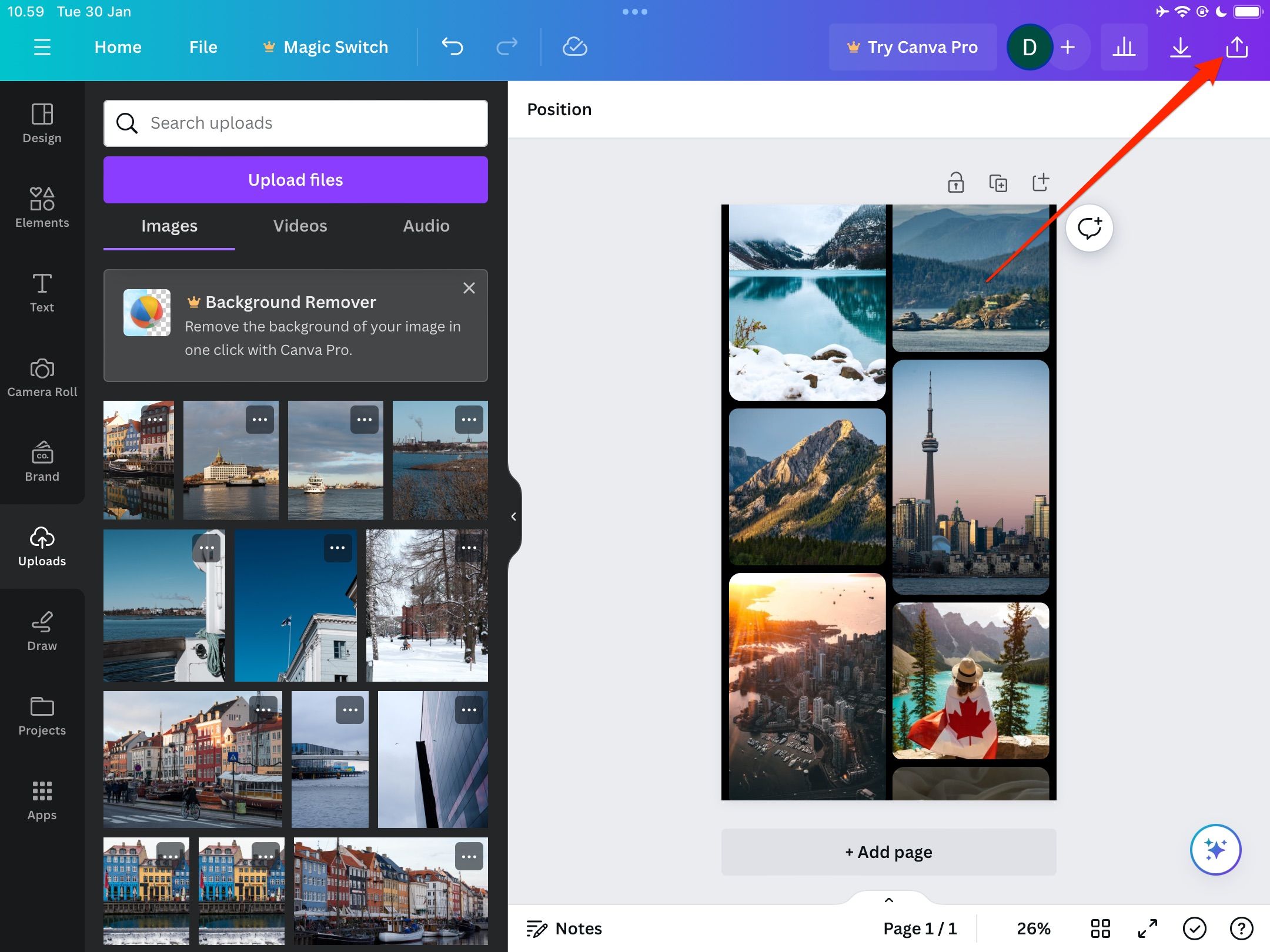
- Select Download.
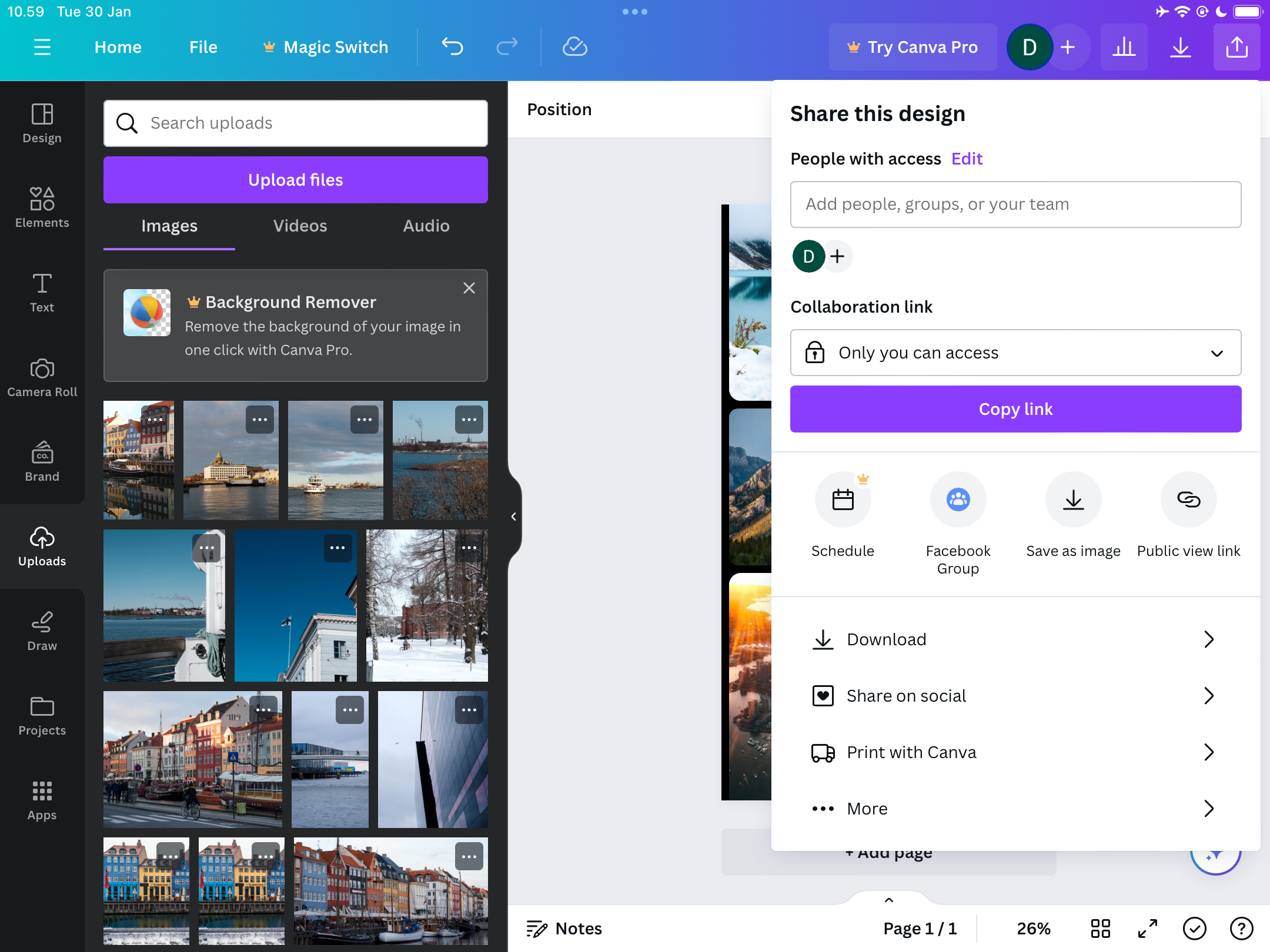
- Customize your file type, size, and anything else you feel is necessary (some options are only available to Canva Pro users).
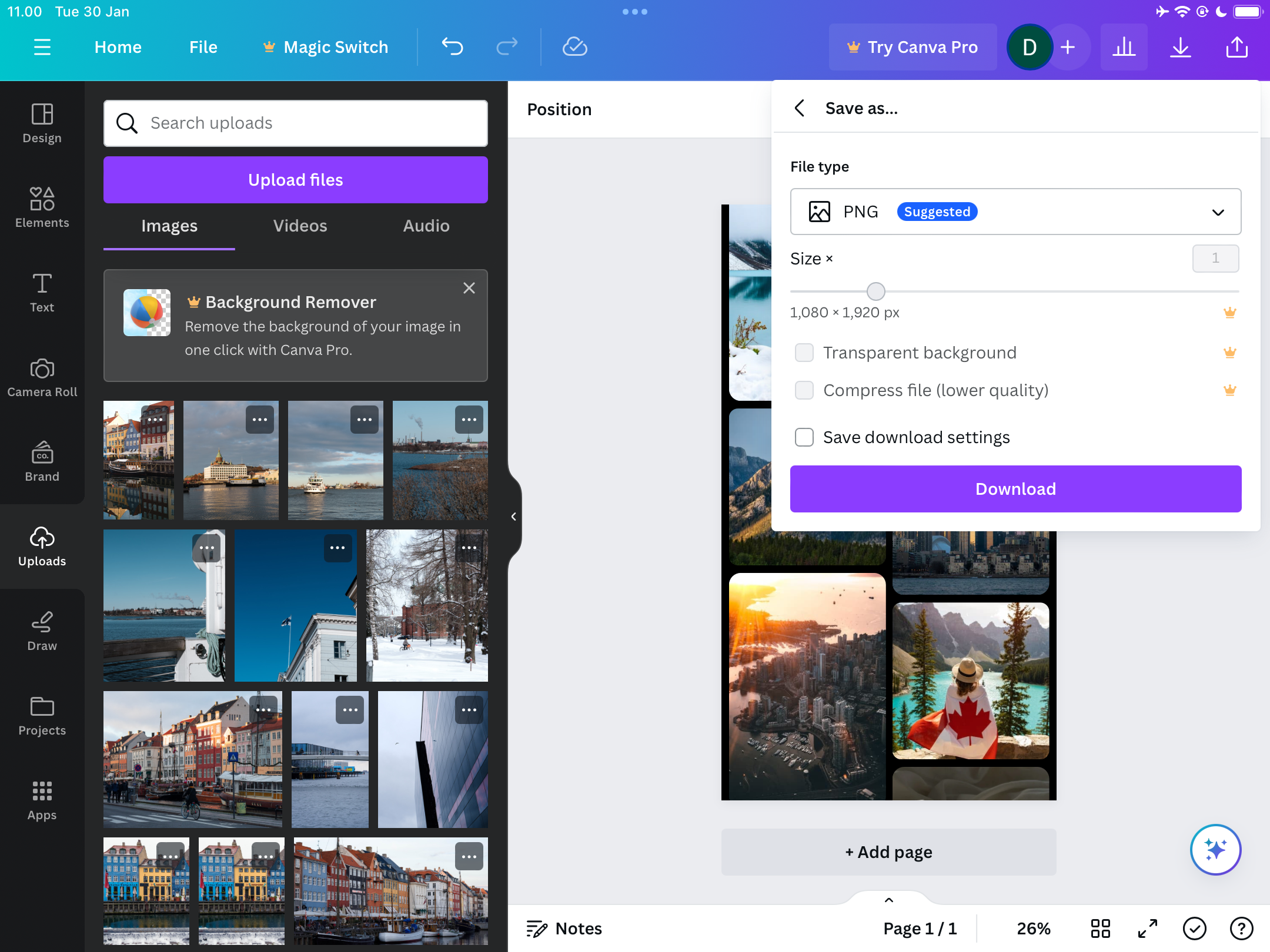
- Hit Download when you’re ready to save your project to your device.


Creating a Canva photo collage is easy across all devices, and you have plenty of customization options. Once you’ve finished, you can share your creations wherever and with whoever you want.